Intune Drive Mapping Without GPO: The PowerShell Script

Quick answer
Intune has no drive mapping setting. You map network drives with a PowerShell script that runs as the logged-on user.
- 1.The script calls
New-PSDrive -Persist, which creates a real mapped drive that shows in File Explorer and survives a reboot. - 2.Deploy it in Devices > Scripts and remediations > Platform scripts with Run this script using the logged on credentials: Yes. Run it as SYSTEM and the user never sees the drives.
- 3.Assign it to a user group. The device needs a route to the file server when it runs (office network or VPN up).
If you're moving device management from Group Policy to Intune, drive mappings are one of the first things to break. Intune has no native drive-maps payload and no equivalent of the Group Policy Preferences item, so Intune drive mapping comes down to a PowerShell script that runs in the logged-on user's context.
This guide covers a working script, the Intune settings that make it work, and the failure modes that generate tickets. Everything below was run on a clean Windows 11 24H2 machine. The screenshots are from that test and haven't been edited.
Why GPO drive maps don't survive the move to Intune
GPO drive maps depend on the device processing Group Policy. That means a domain-joined machine with line of sight to a domain controller at logon. Modern devices increasingly have neither:
- Entra-joined devices don't process GPO at all. No domain join, no Group Policy. End of story.
- Remote devices usually log on before the VPN is up. Policy processing can't reach a DC at that point, so the mapping never applies.
- Hybrid devices process policy asynchronously. Mappings turn up minutes after logon. Sometimes not until the next refresh cycle.
Whatever replaces GPO here has to run on the device itself, as the logged-on user, without caring how the machine is joined.
How to map a network drive in Intune
The short version: Intune has no drive-maps setting, so you map network drives with a PowerShell script that runs as the logged-on user and calls New-PSDrive -Persist. That one command writes a real mapped drive that shows in File Explorer and survives a reboot, on Entra-joined, hybrid, and domain-joined devices alike. The rest of this guide is the script that does it safely and the Intune settings that make it stick.
The script
Atliso-DriveMapper.ps1 is MIT licensed and free to use. You edit one block and deploy. The rest is handled at runtime:
# ══════════════ EDIT THIS BLOCK FOR YOUR ENVIRONMENT ══════════════
# {domain} expands to your AD DNS domain automatically.
# GroupFilter is optional - the drive only maps if the user is a member.

$DriveMappings = @(
    @{ Letter = "S"; Path = "\\fileserver.{domain}\shared";              Label = "Shared" }
    @{ Letter = "H"; Path = "\\fileserver.{domain}\home\$env:USERNAME";  Label = "Home" }
    @{ Letter = "F"; Path = "\\fileserver.{domain}\finance";             Label = "Finance"; GroupFilter = "Finance-Team" }
)
{domain} resolves your AD DNS domain when the script runs. $env:USERNAME resolves per user. GroupFilter reads group membership from the user's logon token, so there are no LDAP queries and no RSAT dependency, and it works over VPN.
What it does on a real machine
Here's a run against a test machine with a local share standing in for the file server. Three drives configured: a valid path, a server that doesn't exist, and one behind a group filter.
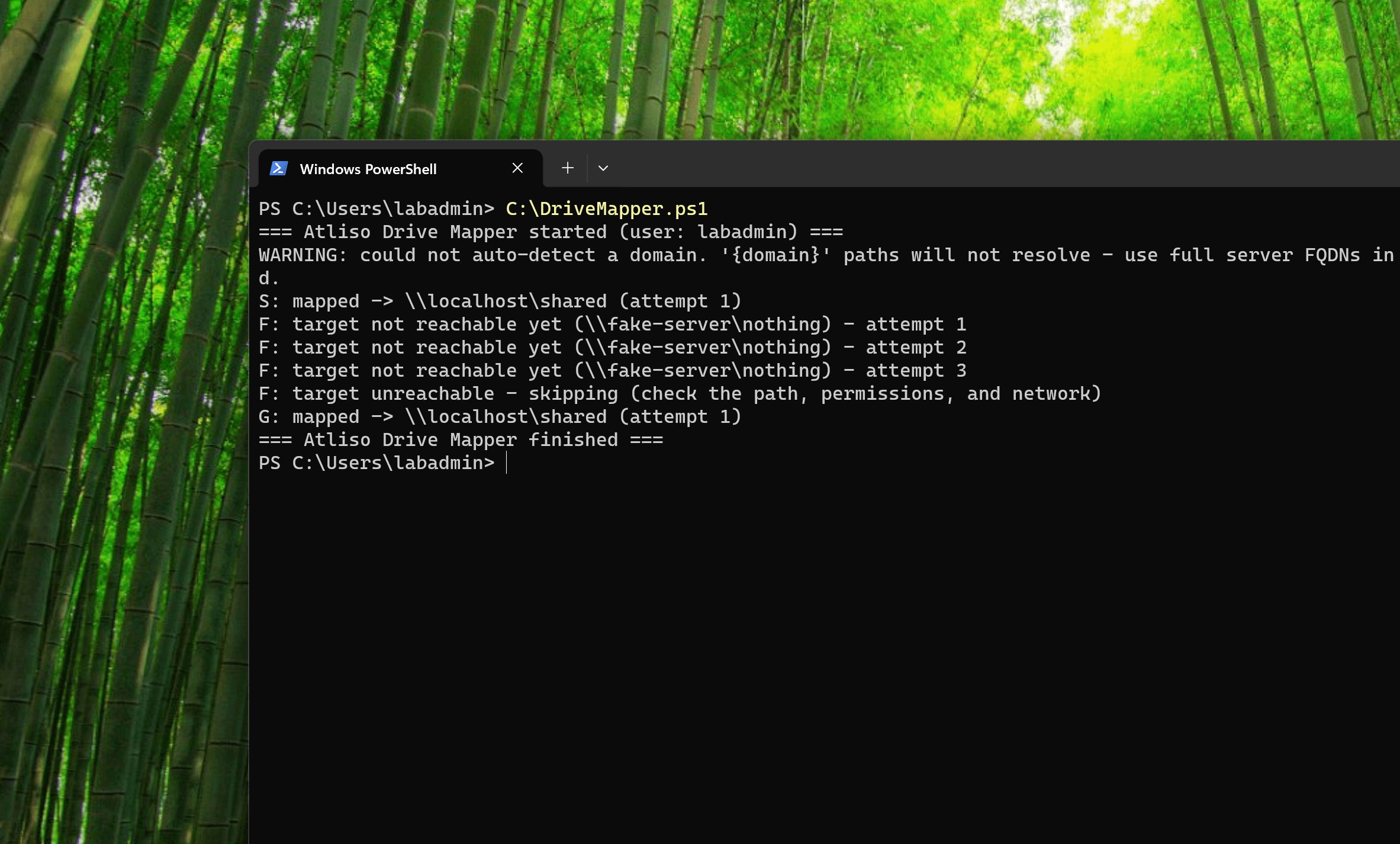
Three behaviours in one run:
- S: and G: map straight away.
New-PSDrive -Persistwrites a real Windows mapped drive. It shows in File Explorer and survives reboots. - F: fails safely. The target doesn't exist, so the script retries three times with increasing waits (10s, 20s, 30s, enough to cover a VPN still connecting at logon) and then skips it. No errors thrown. Nothing else touched.
- The filtered drive maps because the test user is in the required group. Point the filter at a group the user isn't in and the drive gets skipped, with a log line saying why.
The safety rule: never trade a working drive for a broken path
Most drive-mapping scripts follow the same logic: if a letter is mapped to the “wrong” path, delete it, then map the new one. Now suppose the new target is unreachable. A typo in the config, a renamed server, a DNS problem. The user has lost a working drive and got nothing back.
This script checks the new target answers before it touches anything:
S: target unreachable - KEEPING existing mapping -> \\oldserver\shareIf the target can't be verified, the existing mapping stays. Replacement only happens once the new path responds. Across a few hundred devices, that's the difference between a config typo that sits quietly in the log and a morning of “my S: drive is gone” tickets.
Safe to run repeatedly
Intune re-runs platform scripts when they change, and remediations run on a schedule. The script has to be safe to run over and over. Second run, same config:
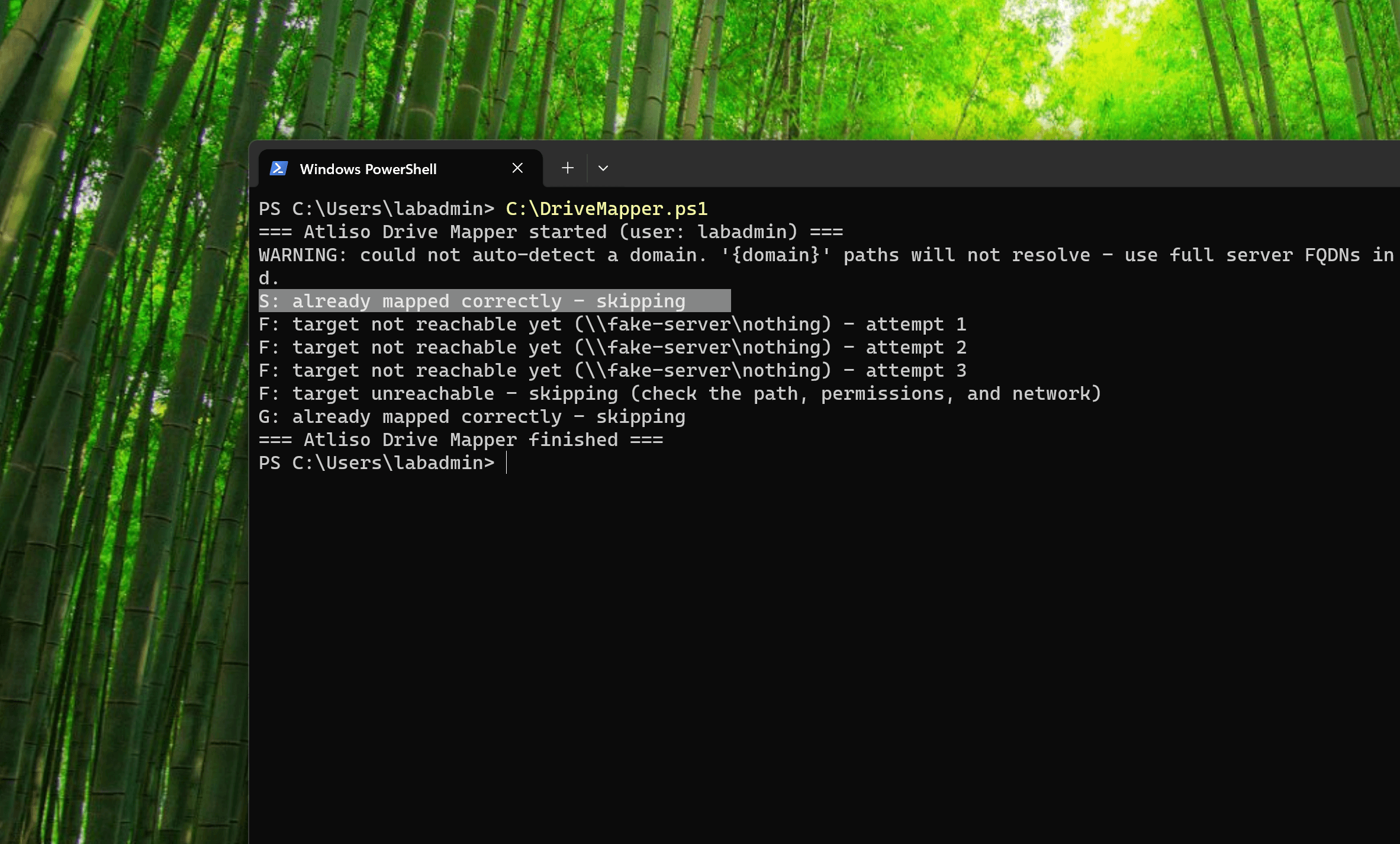
Correct mappings are detected and skipped. Drives the user mapped themselves are left alone. If you do want strict enforcement there's a $RemoveUnlistedDrives flag, but it ships as $false for a reason.
Deploying it in Intune
There is no Intune drive mapping policy to switch on. You deploy the script itself, either as a platform script (runs at enrollment and again whenever the script changes) or as a remediation (runs on a schedule). Platform script is the usual choice:
- In the Intune admin center: Devices > Scripts and remediations > Platform scripts > Add > Windows 10 and later.
- Upload
Atliso-DriveMapper.ps1. - Three settings matter:
- Run this script using the logged on credentials: Yes. Drives are per-user objects. Run the script as
SYSTEMand the drives map into the SYSTEM session, where the logged-on user will never see them. This is the most common mistake with Intune drive mapping, by some distance. - Enforce script signature check: No (unless you sign your scripts).
- Run script in 64-bit PowerShell Host: Yes.
- Run this script using the logged on credentials: Yes. Drives are per-user objects. Run the script as
- Assign to a user group, not a device group. The right people get the right drives on whatever machine they log into.
Platform scripts run once per user per device, and again when the script hash changes. If you want mappings re-checked daily so broken drives heal themselves, deploy the same script as a Remediation with a detection script.
Requirements and what breaks it
- The device needs a route to the file server when the script runs. VPN up, or on the office network. The retry loop buys about 60 seconds. It can't map a share it can't reach. The log at
%LOCALAPPDATA%\Atliso\DriveMapper.logrecords which attempt failed and why. - On a non-domain machine,
{domain}has nothing to resolve. The script warns and carries on instead of dying:If your devices aren't domain-joined, put full FQDNs in the config (e.g.PowerShellPreview snippet. The full, tested script lives in the vault.WARNING: could not auto-detect a domain. '{domain}' paths will not resolve - use full server FQDNs in your config instead.\\fileserver.corp.contoso.com\shared). - Authentication: hybrid-joined devices get Kerberos against the file server without any extra work. Entra-only devices need cloud Kerberos trust configured for on-prem SMB access. Without it, users get credential prompts. Check your join type before a fleet-wide rollout.
- The drive letter has to be free, or already mapped by this script. A USB stick sitting on the same letter will block the mapping. The log will tell you.
- Mapping a drive doesn't grant access to it. NTFS and share permissions still decide what the user can open.
- Mappings that worked and then broke after an update are a different problem. Windows 11 24H2 tightened SMB signing and guest access, which knocks out working mappings fleet-wide. If that's your symptom, see the fix for 24H2 mapped drives rather than changing this script.
Verifying it worked
On the device, as the logged-on user:
net use
Get-Content $env:LOCALAPPDATA\Atliso\DriveMapper.log -Tail 25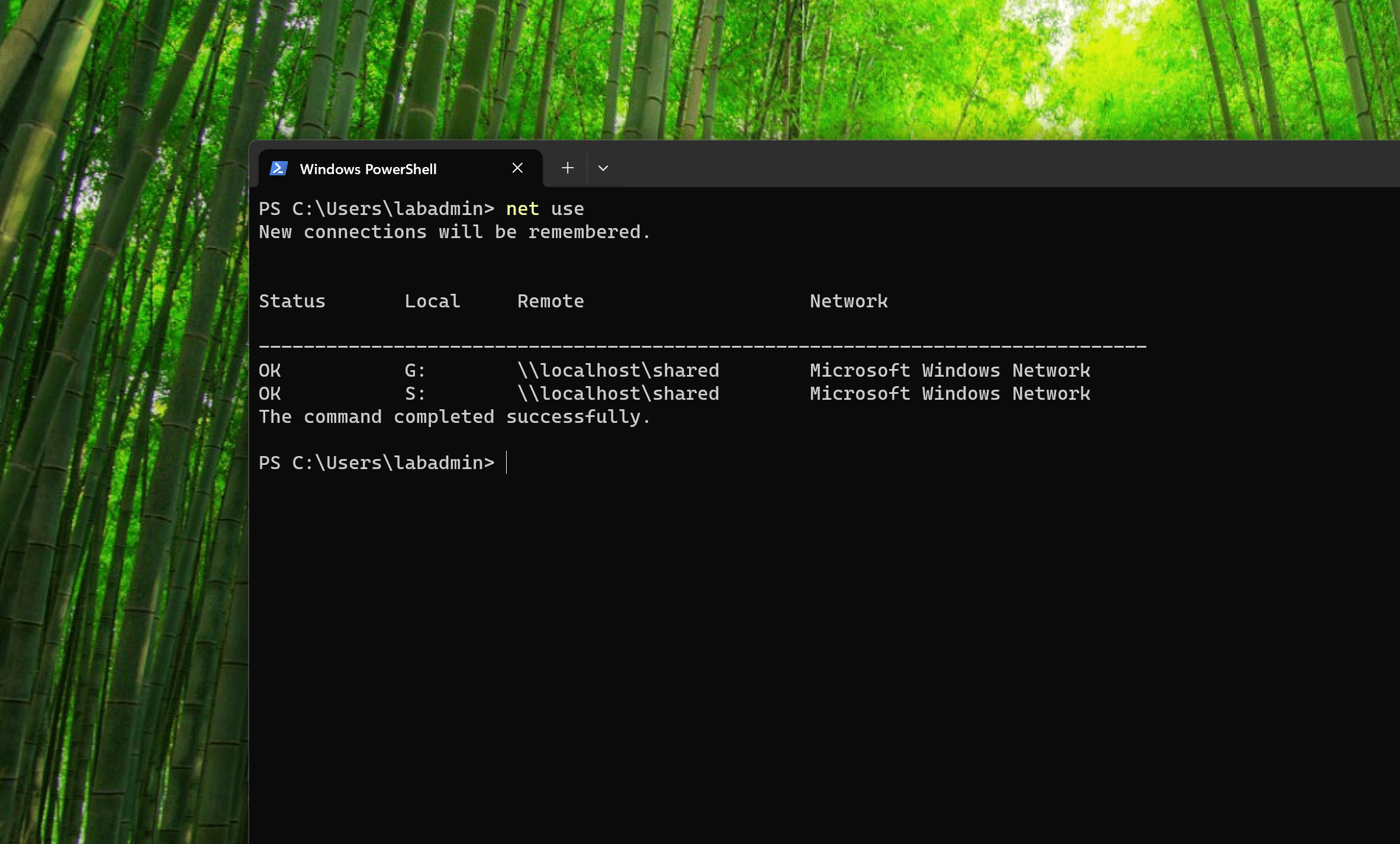
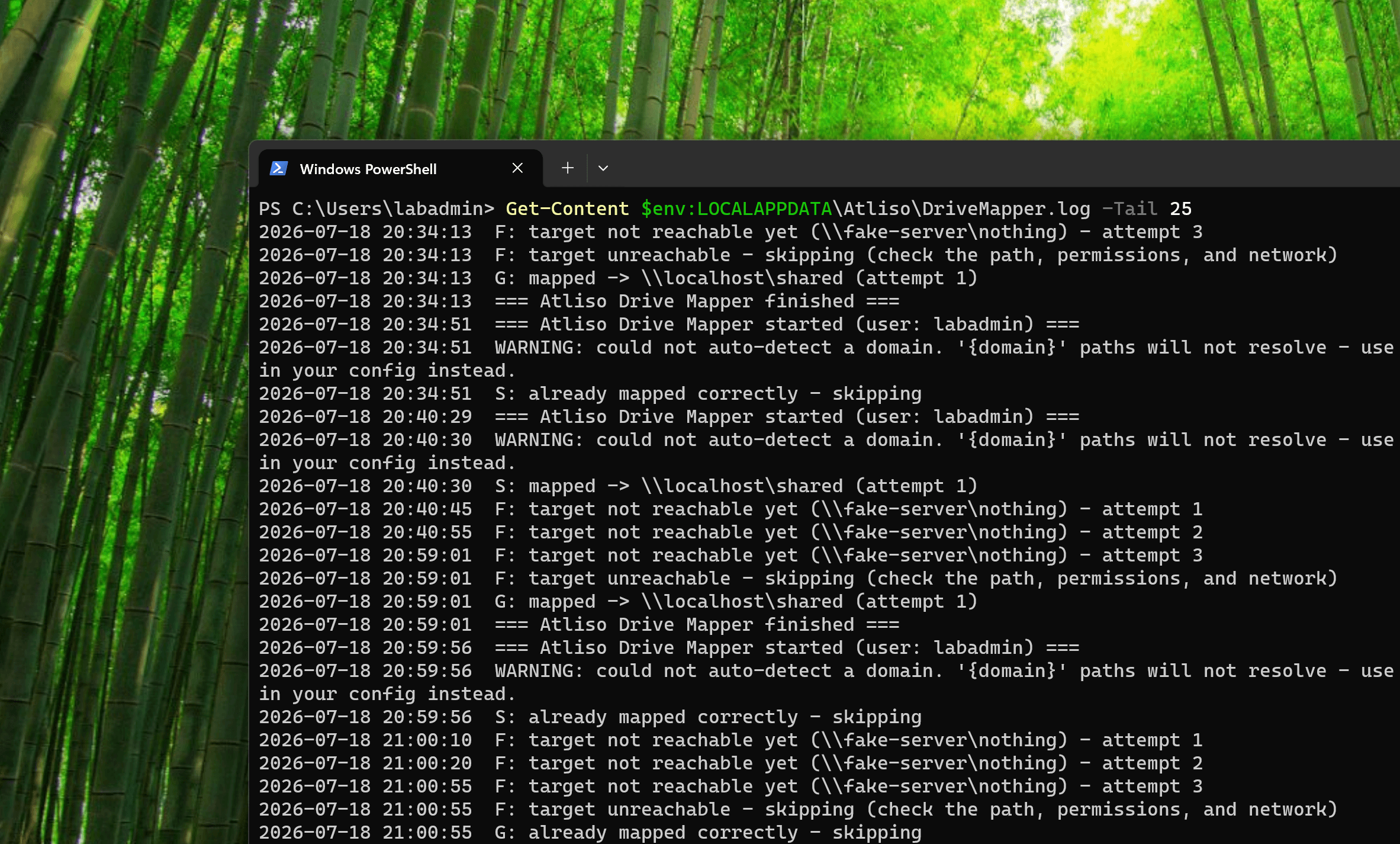
Healthy looks like this: the drive shows OK with the right remote path in net use, and the log has mapped -> entries. Every attempt, skip and warning is timestamped. When a user reports a missing drive, read the log before anything else.
Intune drive mapping FAQ
Can Intune map network drives without GPO?
Yes. Intune has no native drive-maps payload, so Intune drive mapping is done with a PowerShell script that runs in the logged-on user’s context. The script maps drives with New-PSDrive -Persist and works on Entra-joined, hybrid, and domain-joined devices, no Group Policy required.
Why don’t my Intune mapped drives appear for the user?
The usual cause is running the platform script as SYSTEM instead of the logged-on user. Drives are per-user objects, so a mapping created in the SYSTEM session lands somewhere the user never sees. Set "Run this script using the logged on credentials" to Yes.
Should I assign the drive-mapping script to a user group or a device group?
A user group. Drives follow the person, so the right users get the right drives on any device they log into. Assigning to a device group maps drives regardless of who signs in, which is rarely what you want.
How do I force Intune to re-check drive mappings?
Platform scripts run once per user per device and again when the script hash changes. To have mappings re-checked on a schedule so broken drives heal themselves, deploy the same script as a Remediation with a detection script.
Get the Drive Mapper script
Free and MIT licensed. Drop your email and the vault unlocks straight away with the full, tested script, plus new tools when they ship. No spam.