BitLocker Waiting for Activation: Fix Protection Off with PowerShell and Intune

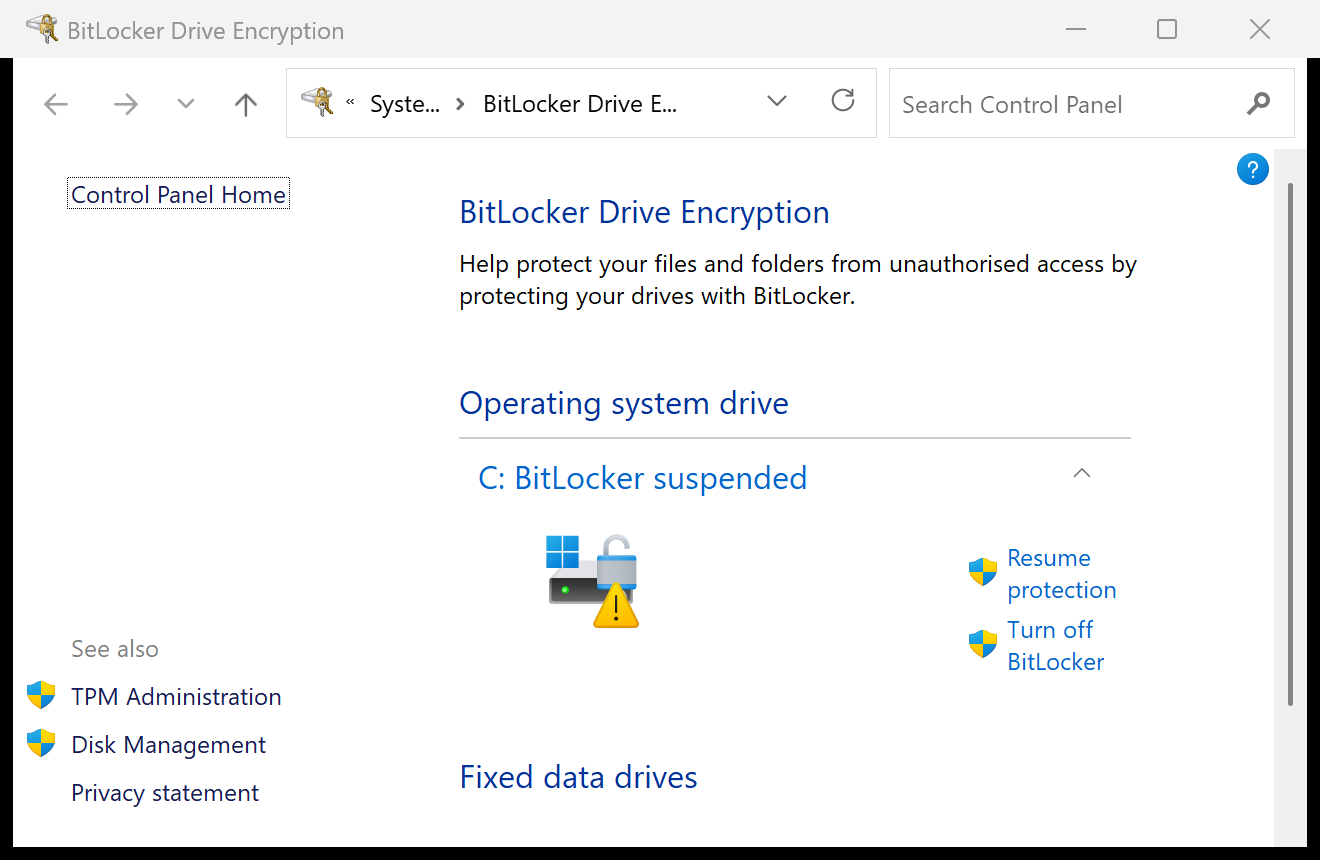
You open Control Panel on a managed laptop and see a yellow warning next to the C: drive: BitLocker waiting for activation (on Windows 11 25H2 the same state is labelled BitLocker suspended). manage-bde -status says the drive is 100% encrypted, yet the Protection Status line reads Protection Off. Intune may flag the device as non-compliant on “Require BitLocker” as well.
The data is encrypted, but the key that unlocks it is sitting on the disk unprotected. Anyone with physical access can read the drive. This guide explains why it happens, how to confirm it, and how to fix it fleet-wide with a detection and remediation script that never decrypts the drive.
Why BitLocker shows “waiting for activation”
Microsoft's BitLocker operations guide defines it precisely: Waiting for Activation means “BitLocker is enabled with a clear protector key and requires further action to be fully protected.” The volume is encrypted, but the volume master key is protected only by a clear key, so BitLocker cannot enforce anything at boot.
These are the causes that show up in the field:
| Cause | What happened | Typical evidence |
|---|---|---|
| Device encryption started, silent enablement never finished | Windows initialises the drive with a clear key, then the Intune policy fails before the TPM protector is created | BitLocker-API event 851 "Failed to enable Silent Encryption" |
| Policy requires a startup PIN or startup key | A PIN needs a human, so silent encryption creates a recovery password and stops. You end up with a fully encrypted drive and no TPM protector | Only RecoveryPassword in the protector list; UseTPMPIN = 1 in the FVE policy key |
| Suspension that never resumed | A firmware or driver tool ran Suspend-BitLocker -RebootCount 0, or the reboot count never ran down after an update | "Protection Off (1 reboots left)" days later |
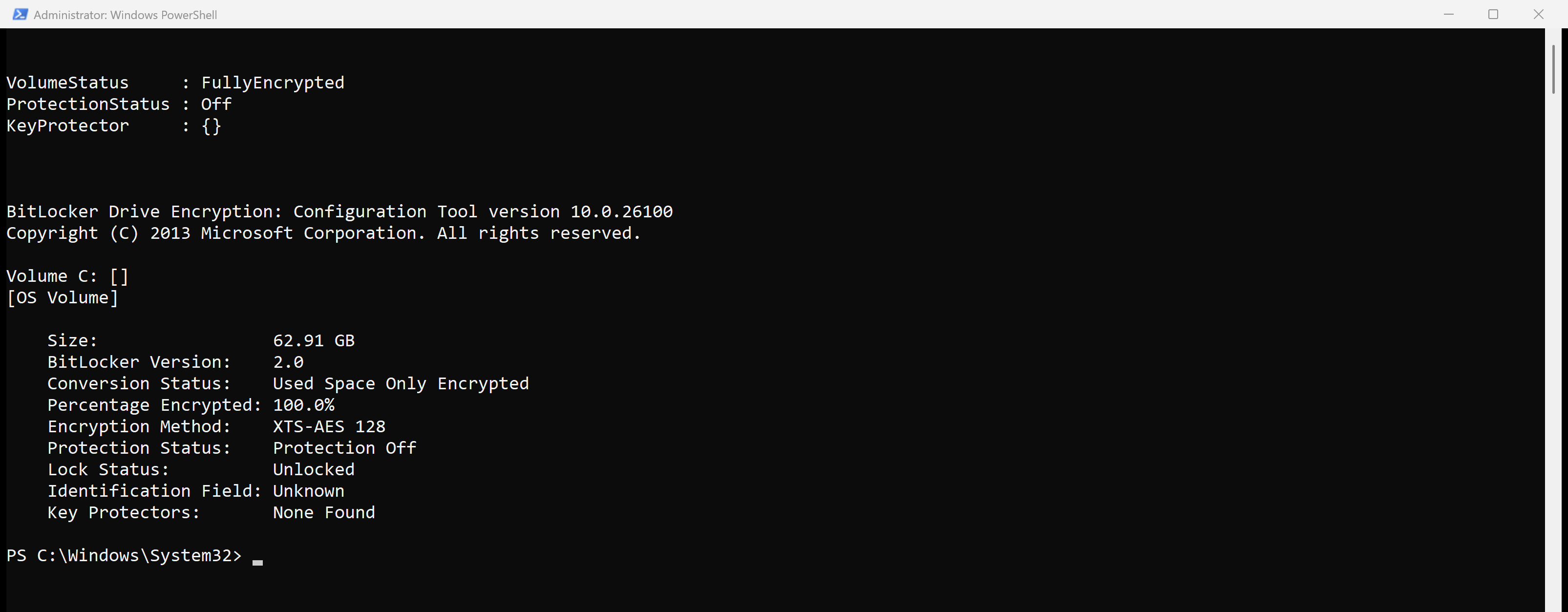
| Protectors were deleted | Someone ran manage-bde -protectors -delete C: while troubleshooting | "Key Protectors: None Found" |
Microsoft documents that last state directly for Remove-BitLockerKeyProtector: if you remove all the key protectors, “BitLocker stores the data encryption key for the volume without using encryption.”
One warning if you reproduce this yourself: manage-bde -protectors -delete C: prints every existing protector to the console before deleting it, recovery password included. Don't run it in a session that is being recorded or logged.
How to confirm it on a device
Run these from an elevated PowerShell prompt.
| Check | Command | Broken looks like |
|---|---|---|
| Volume state | Get-BitLockerVolume -MountPoint C: | VolumeStatus : FullyEncrypted with ProtectionStatus : Off |
| Protector list | (Get-BitLockerVolume C:).KeyProtector | Empty, or RecoveryPassword with no Tpm |
| Classic view | manage-bde -status C: | "Protection Off" or "Protection Off (1 reboots left)", "Key Protectors: None Found" |
| Event log | Applications and Services Logs > Microsoft > Windows > BitLocker-API > Management | An entry at the moment protection dropped. Forum posts quote event 778 "reverted to an unprotected state"; in our 25H2 lab, deleting the protectors logged a 773 warning instead |
| Policy | Get-ItemProperty HKLM:\SOFTWARE\Policies\Microsoft\FVE | UseTPMPIN, UseTPMKey or UseTPMKeyPIN set to 1 (require) |
For the FVE policy values, 0 means do not allow, 1 means require and 2 means allow. If a PIN or startup key is set to require, a TPM-only protector will not satisfy policy, so fix the policy first (more on that below).
The fix: Atliso-BitLockerProtectionFix.ps1
The usual forum advice is to turn BitLocker off and on again, which decrypts the whole drive. The only admin script that gets close, Gannon Novak's FixBrokenBitlocker.ps1 on SMBtotheCloud, does the same thing as a Win32 app: it will “decrypt the drive, wait for decryption to complete”, then re-encrypt. Neither is necessary. Add the missing protector, or resume the suspension, and the clear key is removed.
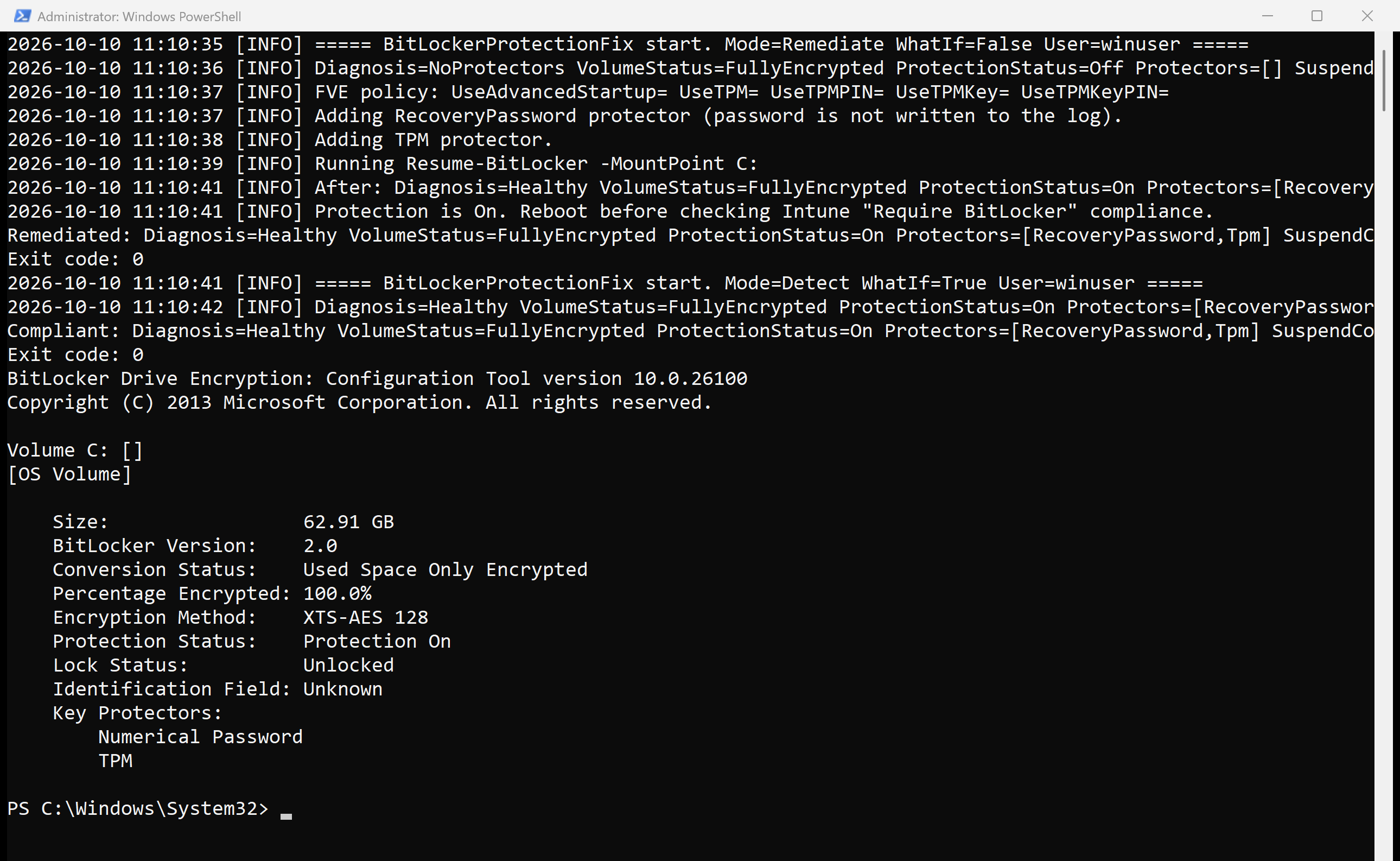
Atliso-BitLockerProtectionFix.ps1 works out which of three states the OS volume is in (suspended, no TPM protector, or no protectors at all) and only does what that state needs. It defaults to $WhatIf = $true, so the first run only logs. Every screenshot below comes from running it on a Windows 11 25H2 VM with a virtual TPM.
#region CONFIG
$Mode                         = 'Detect'          # 'Detect' or 'Remediate'
$WhatIf                       = $true             # $false in the Intune remediation copy
$MountPoint                   = $env:SystemDrive
$AddRecoveryPasswordIfMissing = $true
$BackupToEntra                = $false            # Entra joined devices only
$SkipIfRebootPending          = $true
#endregion
The detection core works out the state and exits 1 if the drive is encrypted but not protected:
$v     = Get-BitLockerVolume -MountPoint $MountPoint
$types = @($v.KeyProtector | ForEach-Object { [string]$_.KeyProtectorType })
if ([string]$v.VolumeStatus -eq 'FullyEncrypted' -and [string]$v.ProtectionStatus -eq 'Off') {
    if ($types.Count -eq 0)                                   { $diag = 'NoProtectors' }
    elseif (-not ($types | Where-Object { $_ -like 'Tpm*' })) { $diag = 'NoTpmProtector' }
    else                                                      { $diag = 'Suspended' }
}
The remediation core adds what is missing, then resumes protection:
if (-not $state.HasRecovery -and $AddRecoveryPasswordIfMissing) {
    Add-BitLockerKeyProtector -MountPoint $MountPoint -RecoveryPasswordProtector -WarningAction SilentlyContinue | Out-Null
}
if (-not $state.HasTpm) {
    Add-BitLockerKeyProtector -MountPoint $MountPoint -TpmProtector | Out-Null
}
Resume-BitLocker -MountPoint $MountPoint | Out-Null
Before it touches anything, the script checks that the TPM is present and ready (Get-Tpm). It also checks that your FVE policy allows TPM-only startup. If a PIN is required, it logs that and exits 1 instead of creating a protector your policy will reject. If an update reboot is pending and the volume shows “n reboots left”, it leaves it alone: resuming at that point can fail with “Data of this type is not supported”.
Verify with:
Get-BitLockerVolume -MountPoint C: | Select-Object VolumeStatus, ProtectionStatus, KeyProtector
Switch to Remediate but leave $WhatIf = $true and it tells you exactly what it would do without touching the drive:

Deploying it in Intune as a remediation
In the Intune admin center go to Devices > Scripts and remediations > Remediations > Create. Upload two copies of the same file.
| Setting | Value | Why |
|---|---|---|
| Detection script | Copy with $Mode = 'Detect' | Exits 1 when the volume is unprotected |
| Remediation script | Copy with $Mode = 'Remediate' and $WhatIf = $false | Intune cannot pass parameters, so the switch lives in the CONFIG block |
| Run this script using the logged-on credentials | No | BitLocker cmdlets need SYSTEM |
| Run script in 64-bit PowerShell | Yes | The script relaunches itself in 64-bit anyway, but set it to Yes |
| Schedule | Daily | Catches suspensions after Patch Tuesday |
Microsoft's Remediations documentation is explicit that a remediation only runs if the detection script exits with exit 1.
If the device is Entra joined and you want the new recovery password escrowed straight away, set $BackupToEntra = $true. For anything about keys missing from Entra ID, see BitLocker recovery key missing from Intune: force escrow fleet-wide.
If the root cause is a BitLocker profile that requires a startup PIN, the script will report it, but the real fix is in the profile: set Compatible TPM startup PIN and Compatible TPM startup key to Blocked if you want silent encryption. Microsoft's client-side troubleshooting guide says the same: “Configuring any of the compatible TPM settings to Required will cause silent encryption to fail.” If you're seeing this straight after Autopilot, read BitLocker key not backed up after Autopilot.
Verifying it worked
- Run the script in Detect mode again. It should log
Healthyand exit 0. manage-bde -status C:should show Protection On and listTPMandNumerical Passwordunder Key Protectors.- The yellow warning disappears from Control Panel.
- Reboot before you judge Intune compliance. “Require BitLocker” relies on Device Health Attestation, and as Neighborgeek's write-up of Microsoft's explanation puts it: “The DHA service only checks the Bitlocker state at boot time.” Until the next restart, a sync keeps re-sending the old state.
The log lives at %LOCALAPPDATA%\Atliso\BitLockerProtectionFix.log. When the script runs as SYSTEM, that resolves to C:\Windows\System32\config\systemprofile\AppData\Local\Atliso\.
FAQ
What does it mean when BitLocker is waiting for activation?
The drive is encrypted, but the encryption key is protected only by a clear key, so it is not secured. Adding a TPM protector, or resuming protection, fixes it without decrypting.
Is my data encrypted when BitLocker protection is off?
Yes, the data on disk stays encrypted. The key that unlocks it is readable, though, so in practice the drive is unprotected until you resume protection.
How do I fix “Protection Off (1 reboots left)”?
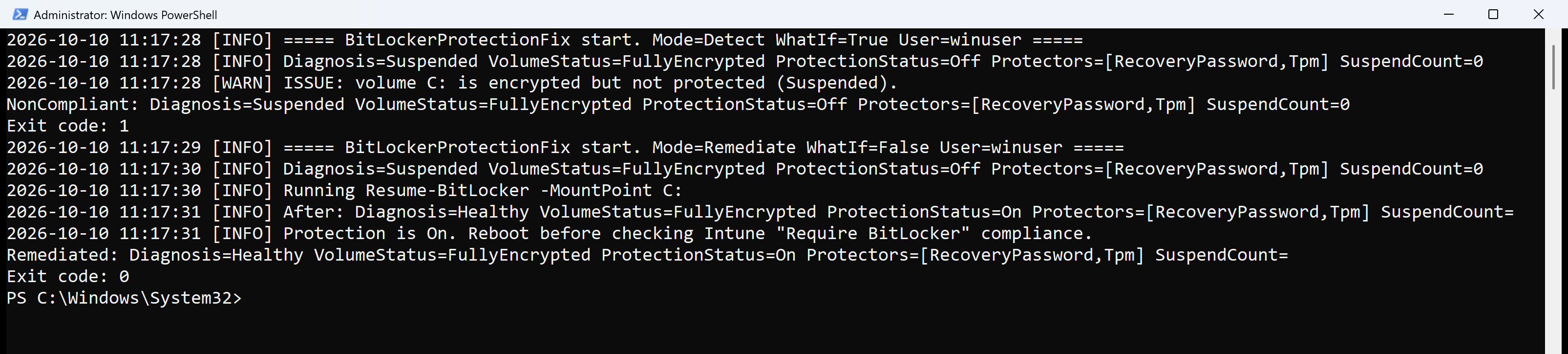
If an update is pending, reboot and it should resume on its own. If it is still there days later with no pending reboot, run Resume-BitLocker -MountPoint C: or the Atliso remediation. An indefinite suspension (Suspend-BitLocker -RebootCount 0) reports a suspend count of 0 and never resumes by itself, which the script catches:
Why does Resume-BitLocker say “Data of this type is not supported”?
Admins on Microsoft Q&A report “Resume-BitLocker : Data of this type is not supported. (Exception from HRESULT: 0x8007065E)” on devices left in “Protection Off (1 reboots left)” after a cumulative update. Restart first, then resume if it is still off.
Why does Intune say “Require BitLocker” is not compliant when the drive is encrypted?
Intune checks protection, not just encryption. A fully encrypted drive with Protection Off fails. Fix the protector, then reboot so the health attestation data refreshes.
The free, MIT-licensed Atliso-BitLockerProtectionFix.ps1 detection and remediation pair is waiting in the Atliso vault.
Get the BitLocker Protection Fix script
Free and MIT licensed. Drop your email and the vault unlocks straight away with the full, tested script, plus new tools when they ship. No spam.