This Device Does Not Have BitLocker Keys Backed Up in Entra ID: Fix It Fleet-Wide
Quick answer
The drive is encrypted, but its recovery password was never uploaded to Entra ID.
- 1.On the device, as an admin, find the RecoveryPassword protector ID with
(Get-BitLockerVolume C:).KeyProtector. If there is only a TPM protector, add a recovery password first. - 2.Run
BackupToAAD-BitLockerKeyProtector -MountPoint C: -KeyProtectorId <id>. - 3.Confirm event 845 in the
Microsoft-Windows-BitLocker-API/Managementlog. For every device at once, deploy the detection and remediation pair below as an Intune remediation.
A laptop needs a BitLocker recovery key. The user calls the help desk, the tech pulls up the device in Intune or Entra ID, and the recovery key field is empty. The device is encrypted, compliant, checking in fine, and there is no key on file anywhere. Now it's a scheduled callback with the user standing next to a locked machine.
This isn't rare. It comes up constantly on Microsoft Q&A and the Intune Tech Community, usually phrased as “BitLocker recovery key missing from Intune/Azure AD” after the fact, when it's already a problem. This guide covers why the escrow silently fails, and a script that finds and fixes it before someone is locked out.
Why the key never made it to Entra ID
Windows only tries to back up a BitLocker recovery key at the moment the protector is created, usually during encryption or Autopilot enrollment. There is no background job that checks later and retries. If that one attempt fails, nothing tells you. The device stays encrypted and compliant. The key just isn't anywhere you can retrieve it.
- The device wasn't Entra-joined yet when it encrypted. Local account setup, or encryption kicked off before the join finished, and there's nowhere to send the key.
- No network at the exact moment of the backup call. A device encrypting during Autopilot over a flaky wifi hotspot can miss the one shot it gets.
- The volume only has a TPM protector, no RecoveryPassword. There's nothing to escrow because a recoverable key protector was never added.
- A reimage or protector rotation created a new key that was never backed up. The old key is on file, the new one isn't, and nobody knows until it's needed.
Each of these is quiet. Compliance policy checks whether the volume is encrypted, not whether the recovery key is retrievable. The gap only shows up the day someone actually needs the key.
If it's new Autopilot builds that keep missing keys, see why the escrow fails during provisioning and how to fix the policy before the device encrypts.
The fix: check, don't assume
Atliso-BitLockerEscrow.ps1 is MIT licensed and built as a detection and remediation pair, the shape Intune remediations expect. Detection checks whether a backup has actually been confirmed recently. Remediation forces it. One config block controls both:
# ══════════════ CONFIG ══════════════
# Drive letters to check. The OS volume by default, add data volumes if you encrypt them.
$VolumesToCheck = @("C:")

# A confirmed backup event inside this window counts as "escrowed."
# Keeps the check from re-sending a key that already made it to Entra ID.
$MaxAgeDays     = 7

# $true reports only. $false actually calls BackupToAAD-BitLockerKeyProtector.
$WhatIf         = $true
# ═════════════════════════════════════$MaxAgeDays exists because BackupToAAD-BitLockerKeyProtector doesn't tell you whether the key was already there. Re-running it is harmless, but there's no reason to call it on every device on every check-in. A confirmed backup inside the window is good enough.
Detection: did the backup actually happen
Windows logs a successful escrow as event ID 845 in the BitLocker-API operational log. That's a more reliable signal than checking key protector presence, because a protector can exist locally without ever reaching Entra ID:
$cutoff = (Get-Date).AddDays(-$MaxAgeDays)

# Get-WinEvent throws instead of returning empty when the channel has no
# matching events, so wrap it. Any error means nothing was confirmed.
try {
    $confirmed = Get-WinEvent -FilterHashtable @{
        LogName   = 'Microsoft-Windows-BitLocker-API/Management'
        Id        = 845
        StartTime = $cutoff
    } -ErrorAction Stop
} catch { $confirmed = $null }

if ($confirmed) { exit 0 }   # a successful escrow logged inside the window
exit 1                       # nothing confirmed - hand off to remediation
Exit 1 here doesn't mean the device is broken. It means nobody has proof the key made it out, so the remediation script runs.
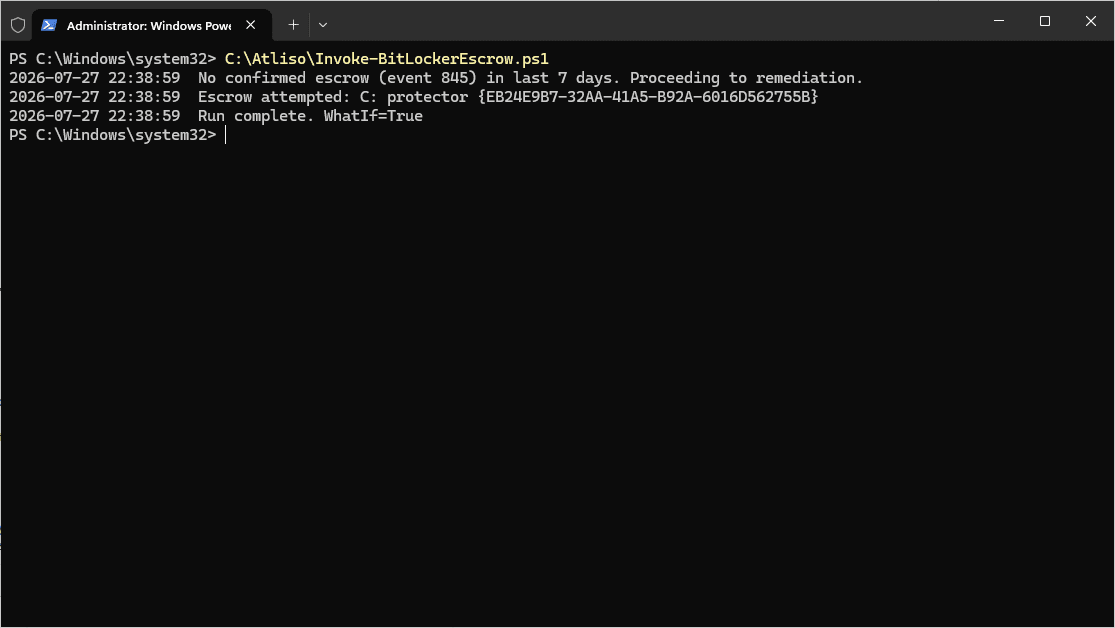
Remediation: force the escrow
For every RecoveryPassword protector on the volumes you're checking, the remediation calls the backup cmdlet directly and logs the result. Volumes with only a TPM protector get flagged instead of silently skipped, because there's no key to send until one exists:
foreach ($mount in $VolumesToCheck) {
    $vol = Get-BitLockerVolume -MountPoint $mount
    $recoveryKeys = $vol.KeyProtector | Where-Object { $_.KeyProtectorType -eq 'RecoveryPassword' }

    if (-not $recoveryKeys) {
        Write-Log "No RecoveryPassword protector on $mount - add one before this can escrow anything"
        continue
    }

    foreach ($kp in $recoveryKeys) {
        if (-not $WhatIf) {
            BackupToAAD-BitLockerKeyProtector -MountPoint $mount -KeyProtectorId $kp.KeyProtectorId
        }
        Write-Log "Escrow attempted: $mount protector $($kp.KeyProtectorId)"
    }
}
The full script adds the TPM-only case (create a RecoveryPassword protector first, then escrow it), a hybrid Entra ID path that also calls manage-bde -protectors -adbackup for on-prem AD, retry handling for transient Graph errors, and the logging shown below. That part lives in the vault.
Watch for more than one recovery password
Multiple RecoveryPassword protectors on the same volume is more common than it sounds, usually left behind by a re-encryption or a manual fix attempt. The script escrows all of them rather than guessing which one is current, and says so:
WARNING: 2 RecoveryPassword protectors found on C:. Escrowing both.
Consider removing the stale one with Remove-BitLockerKeyProtector once you confirm which is current.
Sorting out which protector is stale is a manual call. Don't automate the cleanup of the wrong one.
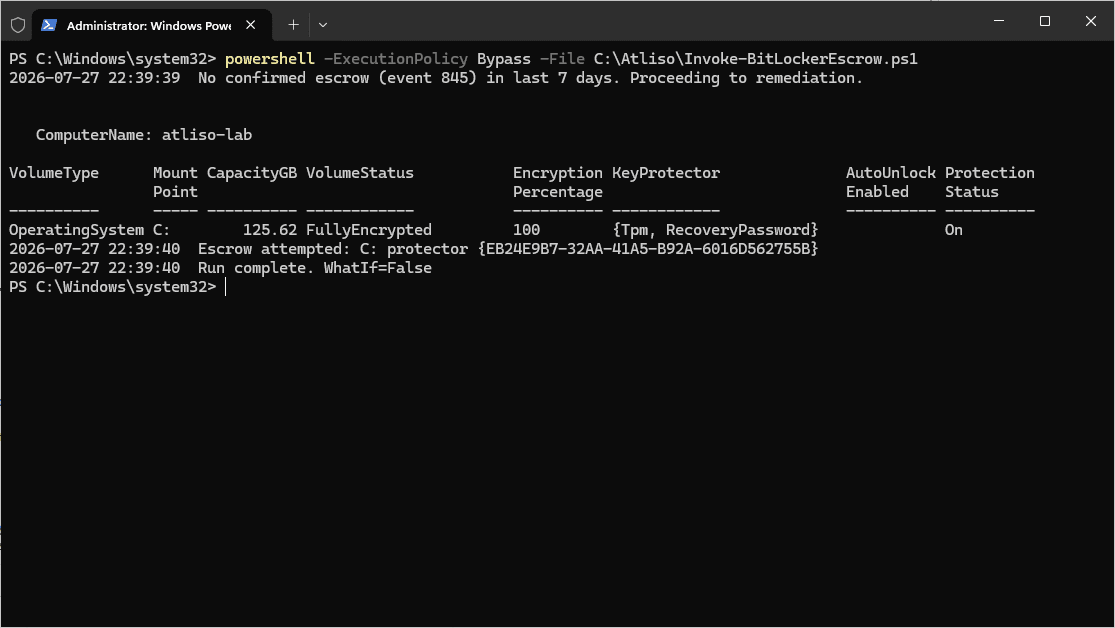
Deploying it as an Intune remediation
The upload flow is the same for any Intune detection-and-remediation pair. If you've worked through one before, like forcing a stuck Windows LAPS rotation or clearing a full Windows security log, this will look familiar.
- In the Intune admin center: Devices > Scripts and remediations > Remediations > Create.
- Upload the detection script and the remediation script as a pair.
- Settings that matter:
- Run this script using the logged on credentials: No. BitLocker protectors and event log entries belong to the device, run this as
SYSTEM. - Run script in 64-bit PowerShell Host: Yes.
- Enforce script signature check: No, unless you sign your scripts.
- Run this script using the logged on credentials: No. BitLocker protectors and event log entries belong to the device, run this as
- Assign to all managed Windows devices, daily. Escrow failures are quiet, so checking daily catches a bad Autopilot run within a day instead of at the next help desk call.
If you're still on ConfigMgr for some of the fleet, the same two scripts drop into a configuration baseline with a compliance rule and remediation, evaluated on whatever schedule you already use for BitLocker compliance.
Requirements and what to check first
- The device needs to reach Entra ID when the remediation runs. No connectivity, no escrow. On a device that's been offline for a while, run it again once it's back online rather than assuming the first attempt covers it.
- Hybrid Entra-joined devices may need both destinations. Check whether your BitLocker policy expects the key in on-prem AD, Entra ID, or both, and match the script's config to that.
- A device with no RecoveryPassword protector at all needs one created first. That's a policy gap in how BitLocker is being enabled, worth fixing at the encryption profile rather than patching after the fact on every device.
- This doesn't replace “Save BitLocker recovery information to AD DS: Require” or the equivalent Entra setting. It catches the cases where that setting was in place and the backup still failed.
Verifying it worked
On the device, and in the Entra ID or Intune device record:
manage-bde -protectors -get C:
Get-Content $env:LOCALAPPDATA\Atliso\BitLockerEscrow.log -Tail 20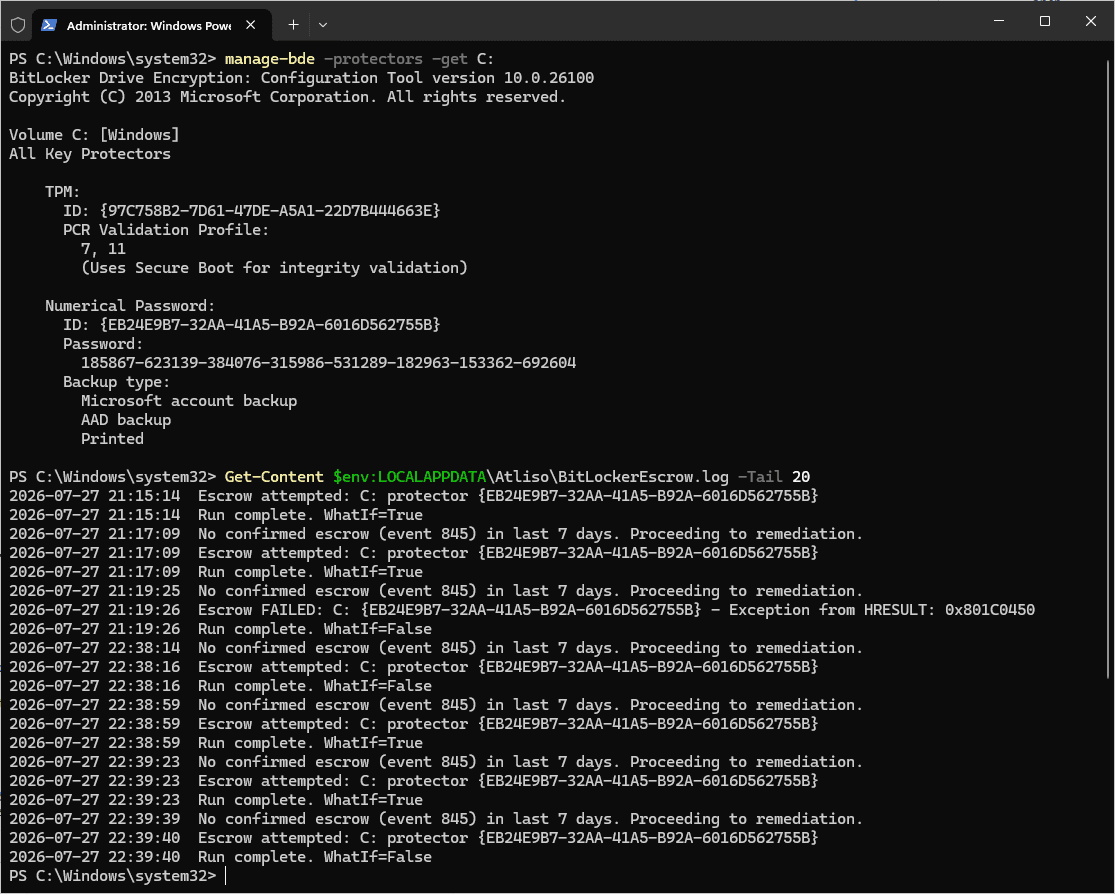
The same key ID then shows up on the device record in Entra ID, under Devices > the device > BitLocker keys:
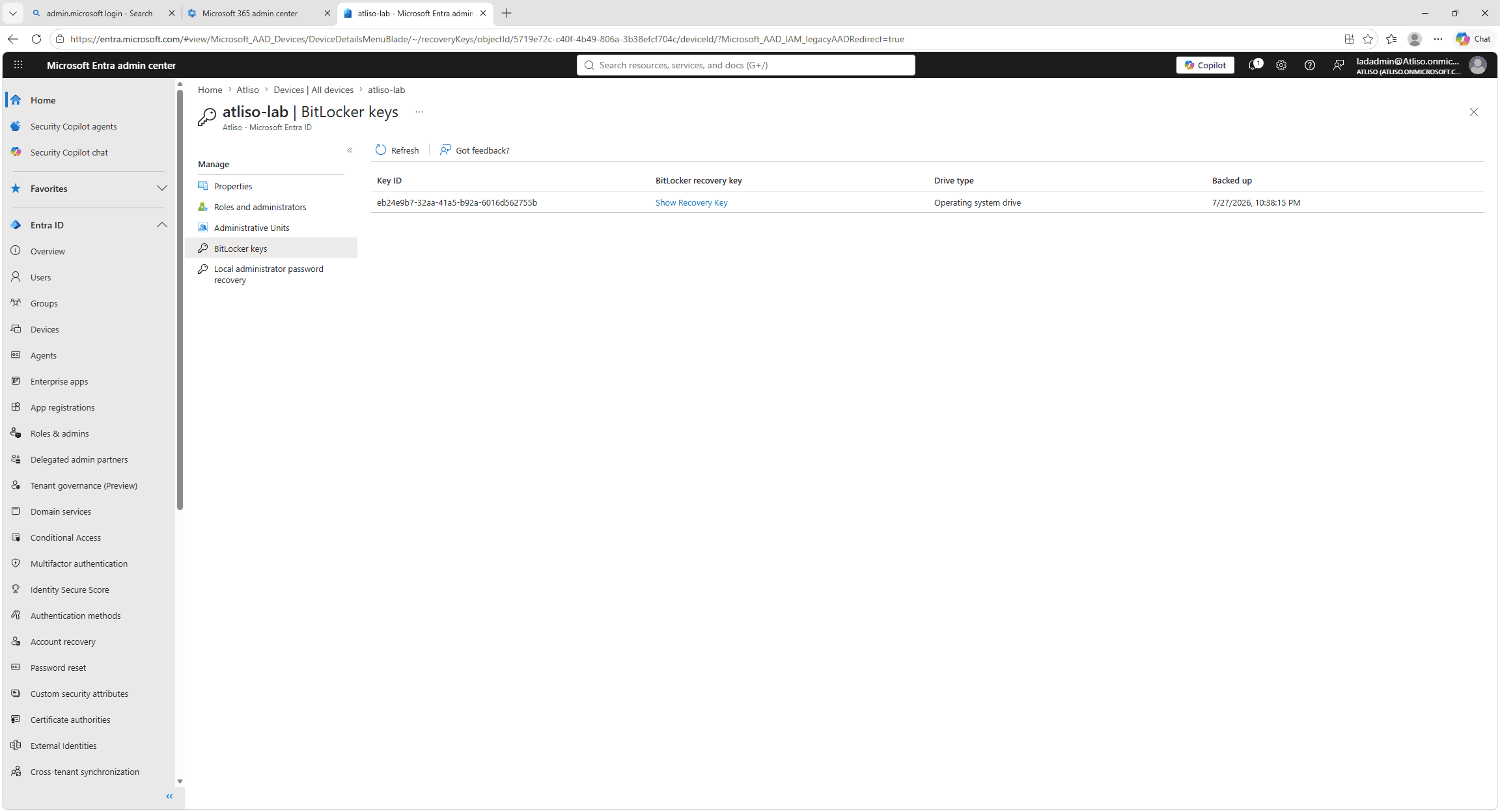
Healthy looks like this: the protector ID from manage-bde matches the key on the device's Entra ID or Intune record, and the log has an Escrow attempted line with today's timestamp. Run detection again after remediation and it should exit 0. If it still exits 1, check connectivity before assuming the script is broken.
If the drive shows Protection Off or waiting for activation rather than a missing key, use BitLocker Protection Fix.
Questions admins ask
Why does Intune say this device does not have BitLocker keys backed up in Entra ID?
Windows only tries to back up the recovery key once, when the protector is created during encryption or Autopilot. If that attempt fails because the device wasn't joined yet, had no network, only had a TPM protector, or was reimaged, nothing retries and nothing warns you.
How do I back up a BitLocker recovery key to Entra ID manually?
On the device, as an admin, find the RecoveryPassword protector ID with (Get-BitLockerVolume C:).KeyProtector, then run BackupToAAD-BitLockerKeyProtector -MountPoint C: -KeyProtectorId <id>. If the volume only has a TPM protector, add a recovery password protector first.
How do I confirm the key actually reached Entra ID?
Look for event ID 845 in the Microsoft-Windows-BitLocker-API/Management log on the device, then check the device in Entra ID under BitLocker keys: the key ID should match the protector ID on the device.
Does a compliant device mean its BitLocker key is backed up?
No. Compliance checks that the drive is encrypted, not that its recovery key can be retrieved. A device can be encrypted and compliant with no key on file anywhere.
How do I fix this for every device, not just one?
Deploy a detection and remediation pair as an Intune remediation, running as SYSTEM in 64-bit PowerShell, daily. Detection looks for a recent event 845; remediation forces the backup. The free script on this page is built for that.
Get the BitLocker Escrow script
Free and MIT licensed. Drop your email and the vault unlocks straight away with the full, tested script, plus new tools when they ship. No spam.
Current version v1.0.1, updated 19 Oct 2026 · Version history