Who viewed a BitLocker recovery key? Check the Entra log
Quick answer
Entra ID logs every BitLocker recovery key view as a Read BitLocker key event in the audit log: who, when, which key and which device. It keeps them for 7 days on Entra ID Free and 30 days on P1 or P2. Viewing a key doesn't rotate it, so the key someone saw still unlocks the drive.
- 1.See who read a key: Entra admin center > Monitoring & health > Audit logs, filter Activity to Read BitLocker key.
- 2.Rotate keys that were read: Intune > Devices > All devices > the device > BitLocker key rotation.
- 3.For every read with its rotation status, or across customer tenants, run the script below.
A laptop boots to the blue BitLocker recovery screen. The user rings the helpdesk, someone opens the device in Intune, clicks Show Recovery Key and reads 48 digits down the phone. The user is back in. The ticket is closed.
That key is now known to the user, the tech, and anyone who was sat nearby. It still unlocks the drive tomorrow, and next month, because nothing changed it. And if someone asks in six weeks who has looked at that laptop's key, the log that would have told you is gone.
This guide covers where Entra records BitLocker key reads, how long it keeps them, who can read keys in the first place, and a read-only script that lists every key read with whether that key has been rotated since.
Where Entra logs BitLocker recovery key reads
Every view of a recovery key creates one audit event, wherever it happens: the Entra admin center, the Intune admin center, the Company Portal, My Account, or Graph with $select=key. Microsoft's Intune docs say it plainly: Show Recovery Key "generates an audit log entry under KeyManagement activity".
| Field | What it holds |
|---|---|
| Activity | Read BitLocker key |
| Category | KeyManagement |
| Initiated by | The UPN and IP address of the person, or the name of the app |
| Target | The BitLocker key ID |
| Additional details | Successfully retrieved BitLocker recovery key associated with key ID: '…'. Backed up from device: '…' |
| Result | Success, or failure when someone without the right role tried |
Listing a device's keys without showing them doesn't log anything. Only revealing the key does.
How to see who viewed a BitLocker recovery key
- Entra admin center > Monitoring & health > Audit logs.
- Set Date range to the widest you have, then select Activity, search for Read BitLocker key and apply it.
- Open an entry. Target(s) has the key ID, and Additional details has the device ID it came from.
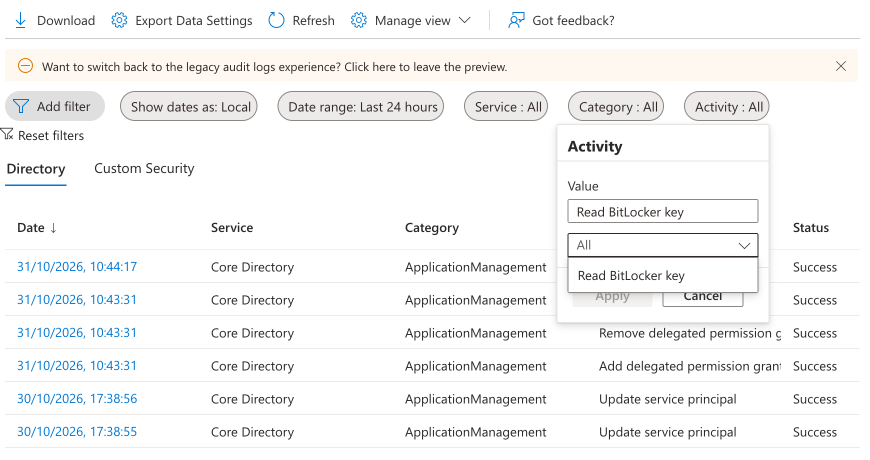
The catch is that the device shows as an ID, not a name. To get from a GUID to a laptop and a user, you look it up under Devices, one event at a time.
How long does Entra keep BitLocker key reads?
| Licence | Audit log kept for |
|---|---|
| Entra ID Free | 7 days |
| Entra ID P1 or P2 (included in Microsoft 365 Business Premium and E3/E5) | 30 days |
After that the events are gone, and upgrading the licence later doesn't bring them back. To keep a longer record you have three options: send the audit log to Log Analytics or a storage account through diagnostic settings, use Purview Audit if you have E5, or run a check on a schedule and keep its output. The last one costs nothing.
Who can read BitLocker recovery keys?
More people than most tenants expect. Any of these Entra roles can read every key in the tenant:
- Global Administrator, Cloud Device Administrator, Helpdesk Administrator, Intune Administrator
- Security Administrator, Security Reader and Global Reader
The last two are "read-only" roles, often handed out to auditors and junior staff on the basis that they can't change anything. They can still read the key that unlocks any drive.
Users can read the keys for their own devices too. Entra's Devices > Device settings page has Restrict users from recovering the BitLocker key(s) for their owned devices, and it's No by default. The CIS Microsoft 365 benchmark recommends Yes. Whether that suits you depends on whether you'd rather the user help themselves at 7am or ring you.

Does viewing a BitLocker key rotate it?
No. This is the part that matters. A key that was read in a portal is exactly as valid afterwards as it was before.
Windows can rotate the recovery password on use: when it's typed in at the recovery screen, the device makes a new one and backs it up to Entra. That needs the Configure Recovery Password Rotation setting in your BitLocker policy (Client-driven recovery password rotation in Intune), and it only fires when the key is used, not when it's viewed. A key read "just to check", or read for a user who then found their PIN, stays valid.
To rotate one yourself:
- Intune admin center > Devices > All devices > the device.
- Select BitLocker key rotation (under the … menu if it isn't shown).
It needs Windows 10 1909 or later or Windows 11, the rotation setting above, and recovery information saved to Entra. If keys aren't reaching Entra at all, fix that first: our guide to BitLocker recovery key escrow covers it, and keys missing after Autopilot is the usual culprit on new devices.
List every BitLocker key read with PowerShell
Atliso-BitLockerKeyAccessAudit.ps1 reads the audit log through Microsoft Graph, matches each read to the device and its current keys, and writes one list. It changes nothing in your tenant, and it never reads a key itself, so running it doesn't add to the log.
The core of it is one filtered call to the audit log:
# Every key read in the last 30 days, straight from the Entra audit log
$since  = (Get-Date).ToUniversalTime().AddDays(-30).ToString('yyyy-MM-ddTHH:mm:ssZ')
$filter = "activityDisplayName eq 'Read BitLocker key' and activityDateTime ge $since"
$uri    = 'https://graph.microsoft.com/v1.0/auditLogs/directoryAudits?$filter=' +
          [uri]::EscapeDataString($filter)
(Invoke-MgGraphRequest -Method GET -Uri $uri -OutputType PSObject).value |
  Select-Object activityDateTime, result,
    @{ n = 'Reader'; e = { $_.initiatedBy.user.userPrincipalName } },
    @{ n = 'Detail'; e = { $_.additionalDetails.value } }
The script then pulls the key ID and device ID out of the detail text, looks up the device name, and checks whether the device backed up a newer key after the read. Each read gets a status:
| Status | What it means | What to do |
|---|---|---|
| Still valid | The key that was read is still the current key | Rotate it. These come first |
| Failed attempt | Someone without the right role tried to read a key | Check who, and why they were asking |
| Rotated | A newer key was backed up after the read | Nothing |
| Key gone | The key is no longer in Entra, usually because the device was deleted | Nothing to rotate |
Each row also says whether the reader was the device's owner (self-service), an admin or an app, and the script flags anyone who read keys for three or more devices in the period. One tech reading three keys in a busy week is normal. A Security Reader account reading forty is not.
What you need:
- The
Microsoft.Graph.Authenticationmodule, and the script: it's on the PowerShell Gallery and on GitHub. - An account with Security Reader or Global Reader. It asks for
AuditLog.Read.All,BitlockerKey.ReadBasic.All(key IDs and dates only, never the key) andDevice.Read.All. Delegated, read-only.
Install-Module Microsoft.Graph.Authentication -Scope CurrentUser
Install-Script Atliso-BitLockerKeyAccessAudit -Scope CurrentUser   # from the PowerShell Gallery
The CONFIG block at the top:
# ===== CONFIG =====
$OutputPath    = Join-Path $env:USERPROFILE 'Desktop\Atliso-BitLockerKeyReads.csv'
$BulkThreshold = 3       # flag anyone who read keys for this many devices or more in the period
$LogPath       = Join-Path $env:LOCALAPPDATA 'Atliso\BitLockerKeyAccessAudit.log'
# ==================Run it:
Atliso-BitLockerKeyAccessAudit.ps1
# Free tenants only keep 7 days
Atliso-BitLockerKeyAccessAudit.ps1 -Days 7
# MSPs: once per customer tenant
Atliso-BitLockerKeyAccessAudit.ps1 -TenantId contoso.onmicrosoft.com
Here's what it prints, run against the sample tenant from its test suite (contoso names, made-up devices):
Status         ReadAt               Reader                ReaderType        DeviceName KeyCreated
------         ------               ------                ----------        ---------- ----------
Still valid    2026-10-30 15:06 UTC helpdesk1@contoso.com Admin or helpdesk LAP-0142   2026-07-03 11:06 UTC
Still valid    2026-10-30 05:06 UTC j.smith@contoso.com   Device owner      LAP-0209   2026-07-03 11:06 UTC
Still valid    2026-10-28 13:06 UTC helpdesk1@contoso.com Admin or helpdesk LAP-0177   2026-07-03 11:06 UTC
Still valid    2026-10-27 07:06 UTC helpdesk1@contoso.com Admin or helpdesk DESK-0031  2026-07-03 11:06 UTC
Failed attempt 2026-10-31 06:06 UTC auditor@contoso.com   Admin or helpdesk LAP-0150   2026-07-03 11:06 UTC
Rotated        2026-10-23 03:06 UTC helpdesk2@contoso.com Admin or helpdesk LAP-0098   2026-07-03 11:06 UTC

helpdesk1@contoso.com read keys for 3 devices in the last 30 days.
Key reads in the last 30 days: 1 failed attempt, 1 rotated, 4 still valid.
It writes a CSV to your desktop and exits 1 if any key that was read is still valid, so it works as a scheduled check. Run it daily and keep the CSVs, and you have a record that outlasts Entra's 7 or 30 days.
What it doesn't do: it doesn't rotate keys or change who can read them. It can only see as far back as Entra keeps logs. And it signs in as you, so for an unattended daily run you'd register an app with the same read-only permissions.
For MSPs: a key read is a ticket
Across client tenants, the useful habit is simple: every key read that wasn't followed by a rotation is a small job. Run the script with -TenantId per customer on Monday morning, rotate what's still valid, and if a client ever asks who has seen their keys, you have the answer.
Questions admins ask
Is viewing a BitLocker recovery key logged?
Yes. Every time someone shows a key in the Entra admin center, the Intune admin center, the Company Portal or My Account, or reads it through Graph, Entra writes a Read BitLocker key event to the audit log, under the KeyManagement category. It records who, when, from which IP, the key ID and the device it was backed up from.
How long are BitLocker key reads kept in the Entra audit log?
Seven days on Entra ID Free and 30 days on P1 or P2. To keep them longer, send the audit log to Log Analytics or a storage account, use Purview Audit if you have E5, or run a script on a schedule and keep its output.
Does viewing a BitLocker recovery key rotate it?
No. The key stays valid until it's rotated. Rotation on use only happens when the recovery password is typed in at the recovery screen, and only if the Configure Recovery Password Rotation policy is on. Reading it in a portal changes nothing.
Can users see their own BitLocker recovery key?
Yes, by default. A user can read the keys for devices they own through the Company Portal or My Account. Entra has a device setting, Restrict users from recovering the BitLocker key(s) for their owned devices, which is set to No unless you change it.
Which roles can read BitLocker recovery keys?
Cloud Device Administrator, Helpdesk Administrator, Intune Administrator, Security Administrator, Security Reader and Global Reader, plus Global Administrator. Security Reader and Global Reader are both read-only roles, and both can read every key in the tenant.
Check BitLocker every night without running anything
Atliso checks every device in your client tenants every night: BitLocker keys that never reached Entra, unencrypted drives, LAPS rotation and devices that have stopped checking in. Anything new arrives in your helpdesk as a ticket. There's a 30-day free trial, and you can see the sample report first.
Sources
- Microsoft Learn: Encrypt Windows devices with BitLocker using Intune (recovery key audit, key rotation, self-service)
- Microsoft Graph: Get bitlockerRecoveryKey (roles that can read keys, audit on
$select=key) - Microsoft Learn: Microsoft Entra data retention
- Microsoft Learn: BitLocker CSP (ConfigureRecoveryPasswordRotation)
Get the BitLocker Key Access Audit script
Free and MIT licensed. Drop your email and the vault unlocks straight away with the full, tested script, plus new tools when they ship. No spam.