Windows 11 24H2 Broke Your Mapped Drives. Here's the Fix That Doesn't Kill Security
Quick answer
Windows 11 24H2 changed two SMB defaults: signing is required on outbound connections, and Pro no longer falls back to guest access. The same defaults carry into 25H2 and 26H2.
- 1.Find which servers fail. Old NAS firmware, default Samba and some print appliances can't sign, so they return 0x80070035 or STATUS_INVALID_SIGNATURE.
- 2.Fix the server, not the client: turn SMB signing on (Windows Server, Synology, QNAP, TrueNAS, Samba
server signing = mandatory) and give guest shares real credentials. - 3.Don't push the two-line client fix across a fleet: it turns signing off for every connection. Use it only as a short, logged bridge.
If mapped drives or NAS shares stopped working after devices took Windows 11 24H2, or after the September 2025 cumulative update KB5065426, you're looking at one of three errors:
0x80070035“The network path was not found”0xc000a000STATUS_INVALID_SIGNATURE- “You can't access this shared folder because your organization's security policies block unauthenticated guest access”
Nothing is broken on the network. Microsoft changed two SMB client defaults in 24H2, and any share that depended on the old behaviour stopped answering. This guide covers what changed, why the fix every other article gives you is the wrong one for a managed fleet, and how to remediate it properly through Intune. There's a free audit script at the end that tells you which devices and which servers are affected before you change anything.
What actually changed in 24H2
Two defaults flipped:
- SMB signing is now required on all outbound connections. Pro, Enterprise and Education editions of 24H2 refuse to talk to any SMB server that can't cryptographically sign its traffic. Older NAS boxes, Samba servers on default config, and some print appliances can't, so the connection dies with STATUS_INVALID_SIGNATURE or the generic 0x80070035.
- Insecure guest fallback is disabled on Pro. Shares that allow access without credentials, which is how a lot of small-office NAS units ship, now get the “unauthenticated guest access” block. Enterprise and Education have blocked this for years. 24H2 brought Pro in line.
Home edition doesn't enforce signing, which is why the office NAS still works from someone's personal laptop while every company device fails. That mismatch alone generates half the confused tickets.
KB5065426 made things sharper. Alongside the hardening, environments with cloned machines and duplicate SIDs, common in VDI and imaged fleets, started failing SMB and RDP connections after the September 2025 update. If your broken devices are non-persistent VDI or freshly imaged clones, that's the thread to pull first.
The fix every article gives you, and why it's wrong
Search any of these errors and the top results all say the same thing: run two lines on the client.
Set-SmbClientConfiguration -RequireSecuritySignature $false
Set-SmbClientConfiguration -EnableInsecureGuestLogons $true
That works. It also switches off SMB signing and re-enables unauthenticated access on every connection that device ever makes, not just to your one NAS. Signing exists to stop relay and tampering attacks on file traffic. Microsoft's own guidance is blunt about this: configure the server to support signing, don't disable it on the client.
On one home PC talking to one NAS, the trade might be acceptable. Pushed across a fleet through Intune, it's a security regression you'll be explaining in an audit. Treat it as a temporary bridge at most, applied narrowly, logged, and reversed. Never as the fix.
The right order of operations
- Audit first. Find out which devices are failing and which servers they're failing against. The script below does this. You can't fix what you haven't mapped, and most fleets discover the problem is two or three old servers, not fifty.
- Fix the server, not the client. Enable SMB signing on whatever is serving the share:
- Windows Server: signing has been supported forever. Enable “Microsoft network server: Digitally sign communications (always)” via GPO or set
RequireSecuritySignatureinSet-SmbServerConfiguration. - Synology, QNAP, TrueNAS and most current NAS firmware: there's a checkbox. On Synology it's under File Services > SMB > Advanced. Update the firmware if the option is missing.
- Samba:
server signing = mandatoryin smb.conf.
- Windows Server: signing has been supported forever. Enable “Microsoft network server: Digitally sign communications (always)” via GPO or set
- Kill guest access properly. Give the share real credentials. If the device is Entra-joined and the server is on-prem AD, that's a cloud Kerberos trust conversation, which is its own article. A service account is the quick version.
- Bridge only where you must. If a server genuinely can't sign, an ancient appliance, a vendor box you can't touch, apply the client relaxation to only the affected device group, tag it, and put a review date on it. The script's Bridge mode does this with logging so you can find and reverse it later.
Once the shares answer again, if you're also standing the mappings up from scratch on these devices, our Intune drive mapping guide covers the user-context PowerShell script that survives Entra join without GPO.
The script: Atliso SMB Health Check
Atliso-SmbHealthCheck.ps1 runs in three modes. Everything below is real output from a Windows 11 test machine.
Audit
Audit is the default. It checks the client's signing and guest-logon posture against the 24H2 defaults, walks every live SMB connection, and writes what it finds to %LOCALAPPDATA%\Atliso\SmbHealthCheck.log. It exits 1 if it finds problems and 0 if the device is clean, which is exactly the shape Intune wants for a detection script. On a compliant device it looks like this:
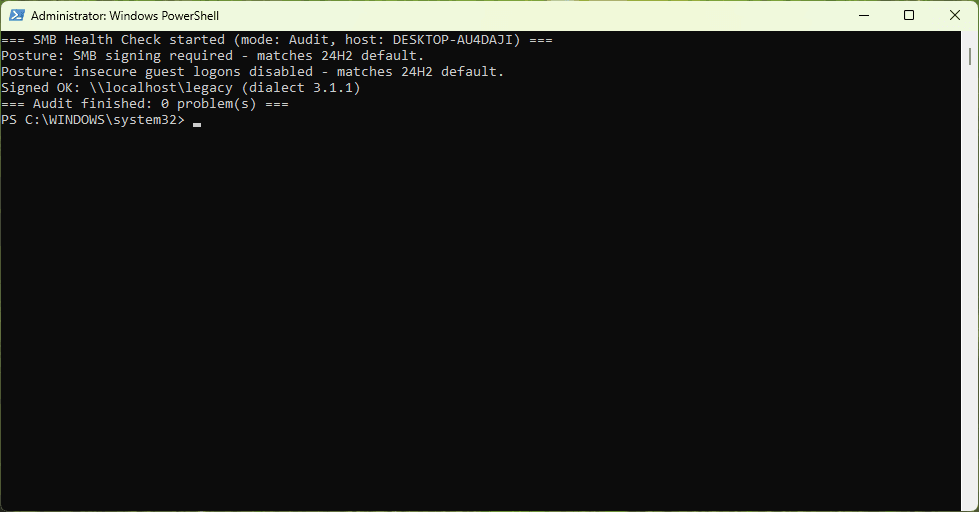
Unsigned connections get flagged by server name and share so you know which server to fix. Servers you have already accepted the risk on can go in the $KnownExceptions list at the top of the script. They still get reported, they just stop failing the exit code.
Bridge
Bridge is the temporary relaxation, done in a way you can find later. It records the previous configuration before it changes anything and writes a marker file so bridged devices are identifiable months from now.
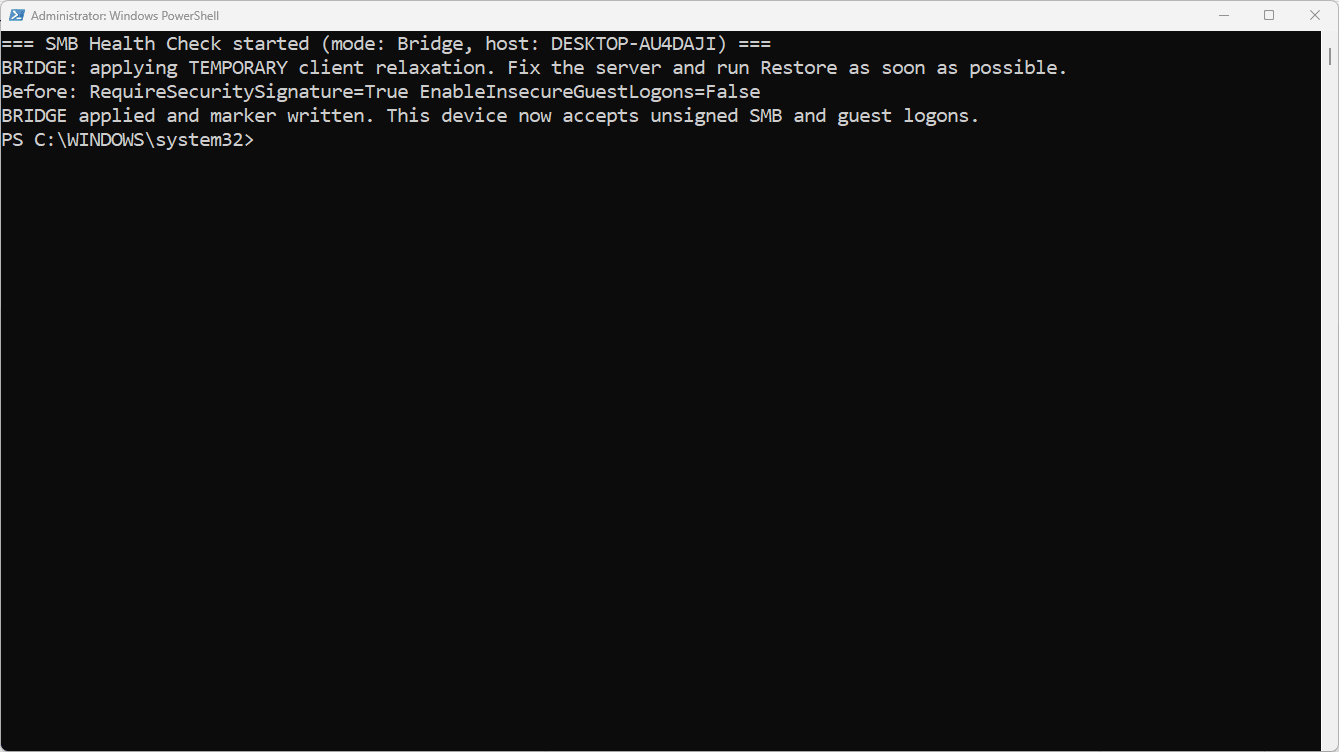
Use it narrowly and put a review date on it. Fixing the server is the actual fix.
Finding the devices someone already relaxed
This is the part most fleets need. If the two-line client fix went out months ago when everything was on fire, those devices are still unprotected and nothing flags them. Audit does:
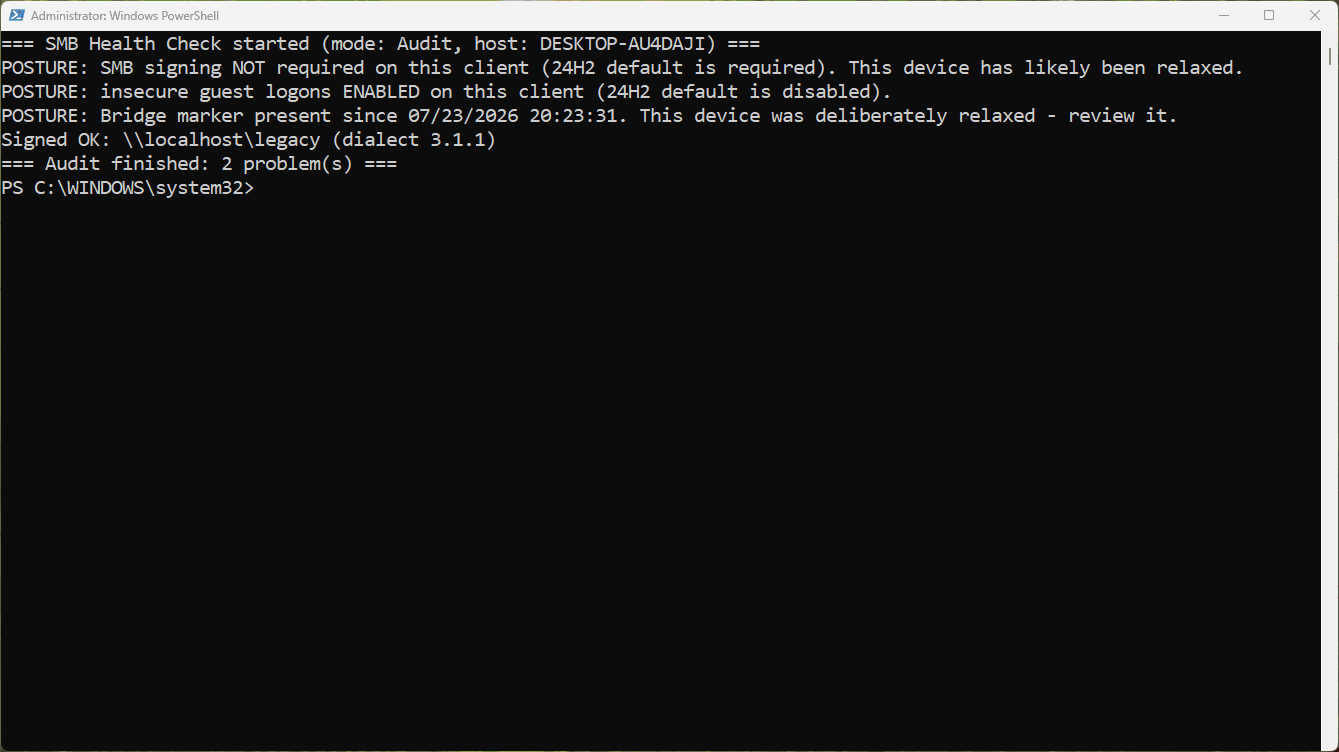
Two problems reported, exit code 1, and the marker tells you when the device was relaxed and that it was deliberate. Run this across the fleet and you have a list.
Restore
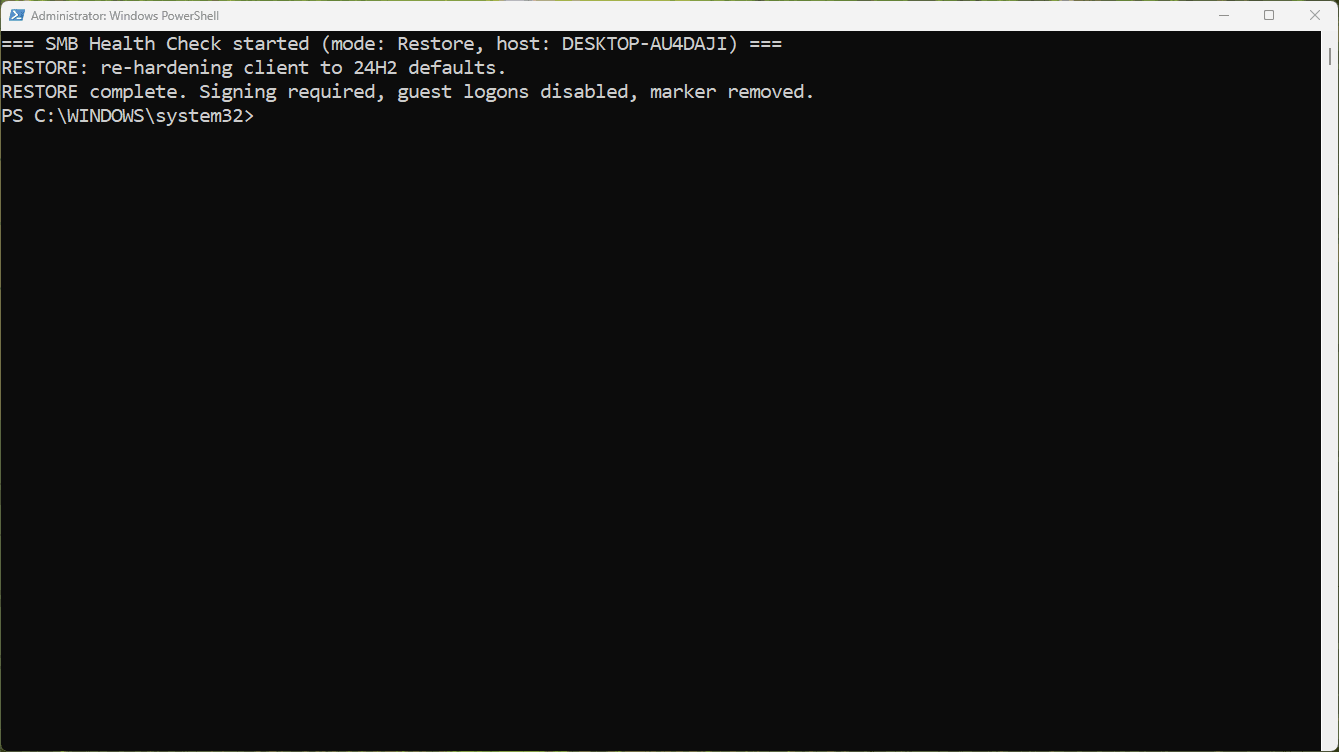
Restore puts the client back to 24H2 defaults and removes the marker. Run it once the server behind the exception has been fixed.
# ══════════════ CONFIG ══════════════
# Servers you KNOW can't sign and have accepted the risk for (lowercase).
# Audit still reports them but won't fail the exit code because of them.
$KnownExceptions = @()   # e.g. @("old-nas01", "printbox")
# ═══════════════════════════════════
The config surface is one block at the top, same as the drive mapper. Nothing else needs editing.
Deploying it through Intune
Run it as a Remediation, not a platform script, because the whole point is visibility across the fleet:
- Devices > Scripts and remediations > Remediations > Create.
- Detection script:
Atliso-SmbHealthCheck.ps1as-is. Audit is the default mode, and its exit codes are already remediation-shaped. - Remediation script: optional. If you want automatic bridging on a scoped group of known-bad devices, use a copy with
$Mode = "Bridge". For most fleets, leave remediation empty and use the detection results as your worklist instead. - Run in 64-bit PowerShell: Yes. System context is fine here, this script reads machine-level config, unlike the drive mapper.
- Assign to a device group. Start with a pilot ring.
Within a day you have a report of exactly which devices can't reach which servers and why, without changing anything. Fix the servers on that list, watch the detections go green.
Verifying the fix
On any device, as any user:
Get-SmbConnection | Select-Object ServerName, ShareName, Signed
Get-Content $env:LOCALAPPDATA\Atliso\SmbHealthCheck.log -Tail 20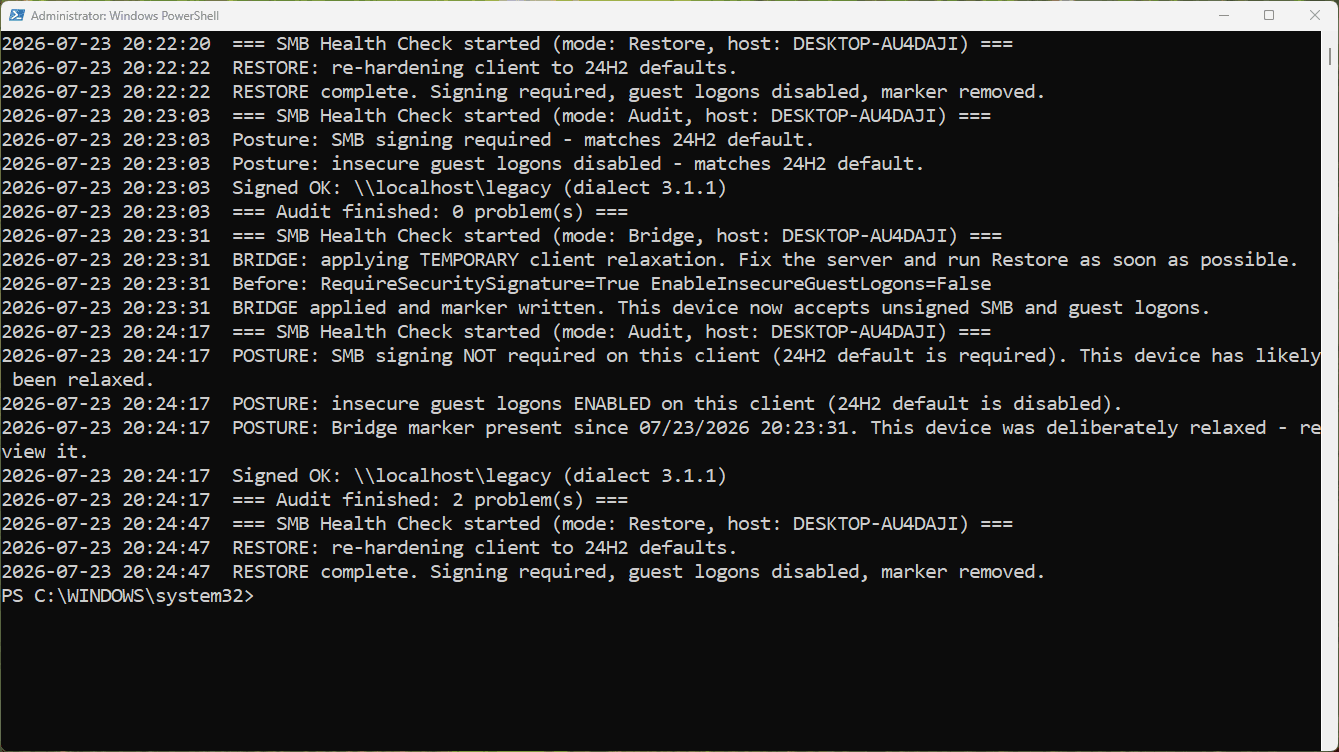
Healthy is Signed: True on every row and a clean audit in the log. If a connection shows unsigned after you've enabled signing server-side, the client cached the old session. net use * /delete and reconnect, or just reboot.
One more thing worth saying. If you rolled out the two-line client fix months ago because everything was on fire, no judgement, that was most of the internet's advice. Run the script in Audit mode, find those devices, fix the servers behind them, then Restore. The log tells you exactly where you stand.
Get the SMB Health Check script
Free and MIT licensed. Drop your email and the vault unlocks straight away with the full, tested script, plus new tools when they ship. No spam.