LAPS Password Not Rotating in Intune? Force Rotation and Prove It Worked

Quick answer
A LAPS policy showing compliant does not mean the password rotated. Only the backup event proves it.
- 1.Look in the
Microsoft-Windows-LAPS/Operationallog for event 10029 (backed up to Entra ID) or 10018 (Active Directory). - 2.If it is missing, run
Reset-LapsPasswordas an admin. Rotation happens on the next background cycle, within the hour. - 3.Check for the event again. Repeated event 10005 means policy processing is failing. For a whole fleet, deploy the detection and remediation pair below as an Intune remediation.
A device shows up compliant in Intune. The Windows LAPS policy is assigned, the CSP reports success, and nobody has touched it. Then someone tries to recover the local admin password during an incident and finds the password on file is four months old. Intune never flagged it, because Intune compliance checks whether the LAPS policy applied, not whether a password actually rotated.
This comes up constantly on Microsoft Q&A and the Intune Tech Community, usually phrased as “LAPS shows compliant but the password never changes” or “LAPS rotate pass on Intune” after someone already got burned. This guide covers why it happens and a script that checks the one thing that actually matters: a confirmed backup event, not a policy status.
Why “compliant” doesn't mean “rotating”
Windows LAPS runs on a background cycle that wakes up every hour on a fixed schedule. It isn't a scheduled task you can inspect or nudge, it's built into the OS and not configurable. Each cycle checks whether the current password has hit its PasswordAgeDays limit and, if so, generates a new one and backs it up to Entra ID or Active Directory depending on policy. That part works reliably when the policy is clean.
The gap is what “policy applied” is actually measuring:
- A conflicting policy source wins silently. Microsoft's own guidance is Entra-joined and hybrid devices onboarded through Intune, GPO for on-prem AD-joined ones. A hybrid device that still has an old GPO from before the Intune migration can end up with two policy sources active, and whichever one wins might not be the one you think you configured.
- The device stopped checking in, but compliance is cached. Intune's compliance state reflects the last successful check-in. A device that's been offline for weeks can still show “compliant” from before it went quiet.
- The password genuinely hasn't hit its age limit yet. Not a bug, just a false alarm if your expectations don't match the configured
PasswordAgeDays. - The backup call itself is failing. No line of sight to Entra ID or the domain controller at the moment the cycle runs, and the password rotates locally but never makes it anywhere retrievable.
Compliance policy can't distinguish any of these from a healthy device. Only the LAPS operational log can. It's the same gap BitLocker recovery keys fall into, where Intune reports the key escrowed while Entra never actually received it.
The script
Atliso-LapsRotationAudit.ps1 is MIT licensed and built as a detection and remediation pair, the shape Intune remediations expect. Detection checks for a confirmed backup event inside your expected rotation window. Remediation forces one if it's missing. One config block controls both:
# ══════════════ CONFIG ══════════════
# Where this device backs up its LAPS password. Match your Intune LAPS policy.
# "EntraID" for Entra-joined and hybrid devices onboarded through Intune,
# "ActiveDirectory" for on-prem devices still managed by the GPO path.
$BackupDestination = "EntraID"

# Your Intune LAPS policy's Password Age Days value. Detection uses this as
# the baseline, not a guess.
$PasswordAgeDays = 30

# Days of slack on top of PasswordAgeDays before "hasn't rotated yet" becomes
# "rotation is broken". Keep this small - a device that's actually overdue
# shouldn't sit quietly for a week before anyone finds out.
$GraceDays = 2

# $true reports only. $false actually calls Reset-LapsPassword.
$WhatIf = $true
# ═════════════════════════════════════$BackupDestination has to match your actual policy, not a guess. Get it wrong and detection checks the wrong event ID forever, reporting a false failure on every run.
Detection: a confirmed event, not a status field
Windows LAPS logs a successful backup as event 10029 (Entra ID) or 10018 (Active Directory) in the Microsoft-Windows-LAPS/Operational log. That's the only signal that says the new password actually left the device, as opposed to a policy that's merely present:
$eventId = if ($BackupDestination -eq 'EntraID') { 10029 } else { 10018 }
$cutoff  = (Get-Date).AddDays(-($PasswordAgeDays + $GraceDays))

# Get-WinEvent throws instead of returning empty when nothing matches, so wrap it.
try {
    $confirmed = Get-WinEvent -FilterHashtable @{
        LogName   = 'Microsoft-Windows-LAPS/Operational'
        Id        = $eventId
        StartTime = $cutoff
    } -ErrorAction Stop
} catch { $confirmed = $null }

if ($confirmed) { exit 0 }   # a successful backup logged inside the window
exit 1                       # nothing confirmed - hand off to remediation
Exit 1 doesn't mean LAPS is misconfigured. It means nobody has proof a rotation completed inside the window, so remediation runs.
Remediation: force it, then wait for the real cycle
Reset-LapsPassword is a native Windows LAPS cmdlet that tells the local device to rotate immediately. It doesn't return a result and it doesn't rotate synchronously, it hands off to the same hourly background process:
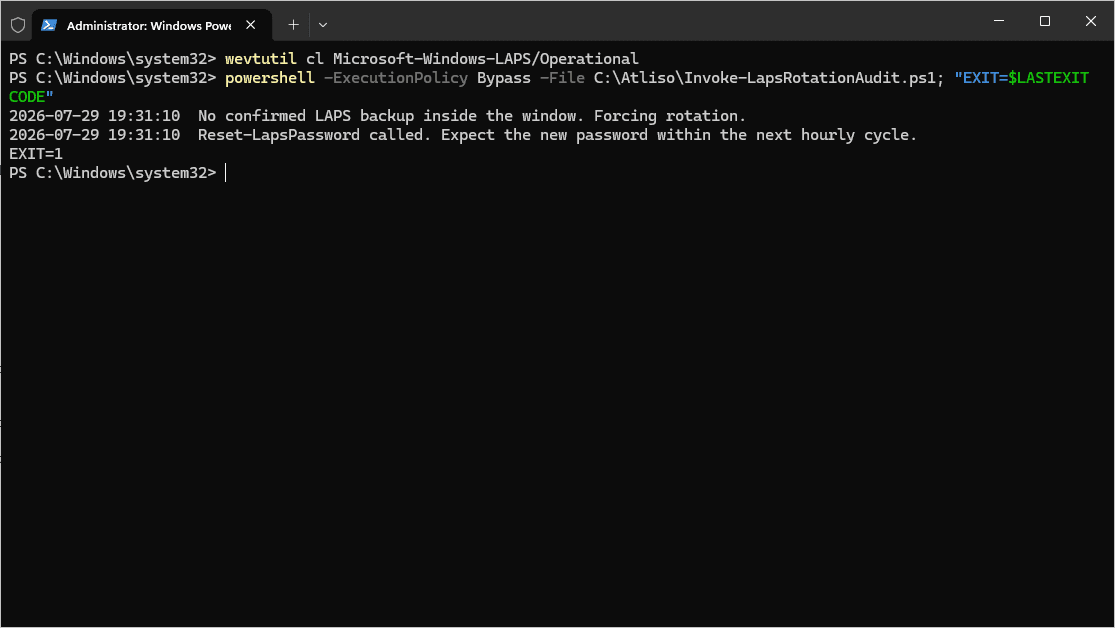
Write-Log "No confirmed LAPS backup inside the window. Forcing rotation."

if (-not $WhatIf) {
    Reset-LapsPassword
}

# Reset-LapsPassword hands off to LAPS' own background processing, it doesn't
# rotate the password itself. Windows LAPS wakes up hourly on a fixed,
# non-configurable cycle - there's no scheduled task to nudge and no way
# to make it faster than that.
Write-Log "Reset-LapsPassword called. Expect the new password within the next hourly cycle."
The full script also calls Get-LapsDiagnostics to capture a trace across the forced reset when the first attempt fails, which is usually enough to tell you whether the block is policy, connectivity, or credentials. That part, plus the write-only-if-changed logging, lives in the vault.
Watch for repeated processing failures
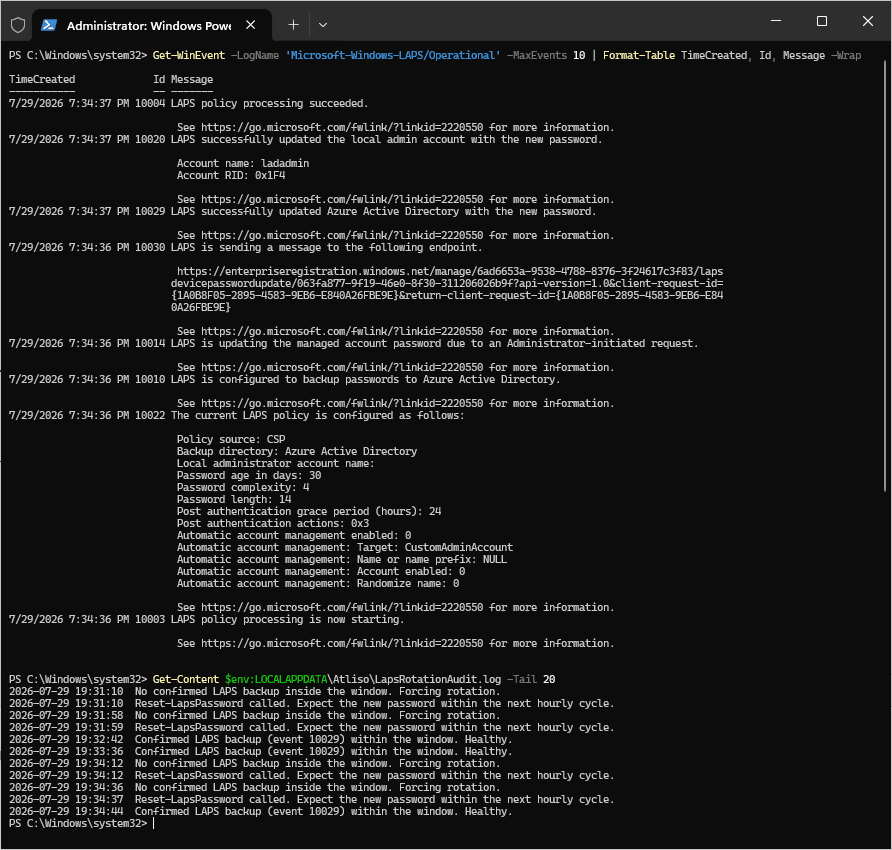
A single missed rotation is worth fixing quietly. Repeated event 10005 entries mean the cycle itself is failing, and forcing another rotation won't help until the underlying cause is dealt with:
WARNING: Event 10005 (LAPS policy processing failed) logged 4 times in the last 24 hours.
This isn't a timing problem, rotation is actively failing. Run Get-LapsDiagnostics before
assuming the remediation fixed anything.
That's the signal to stop remediating and go look at policy precedence or connectivity on that specific device, instead of letting the remediation fire every day against a device that was never going to succeed.
Deploying it as an Intune remediation
The upload flow is identical for any Intune detection-and-remediation pair. If you've deployed one before, like forcing a BitLocker recovery key to escrow or clearing a full Windows security log before it locks users out, this will look familiar.
- In the Intune admin center: Devices > Scripts and remediations > Remediations > Create.
- Upload the detection script and the remediation script as a pair.
- Settings that matter:
- Run this script using the logged on credentials: No. LAPS state and the event log belong to the device, run as
SYSTEM. - Run script in 64-bit PowerShell Host: Yes.
- Enforce script signature check: No, unless you sign your scripts.
- Run this script using the logged on credentials: No. LAPS state and the event log belong to the device, run as
- Assign daily to whatever device group already gets your Windows LAPS policy. There's no point running this against devices LAPS was never configured on.
Requirements and what to check first
- This audits rotation, it doesn't turn LAPS on. The Windows LAPS CSP policy has to already be assigned and applied. If a device has never processed the policy, there's no baseline event to look for and the script will keep reporting a failure that's really a “not configured” state.
- Hybrid devices are where policy conflicts show up most. If a device is both GPO and Intune managed, confirm which source is actually winning before assuming the Intune policy is the one running.
- The device needs to reach Entra ID or a domain controller when the hourly cycle runs. A device that's asleep or off the network at the exact moment doesn't get another shot until the next cycle.
- Match
$PasswordAgeDaysto your actual policy. A mismatch here is the single most common cause of false positives with this script, not a real rotation problem.
Verifying it worked
On the device, and in the device's local admin password recovery blade:
Get-WinEvent -LogName 'Microsoft-Windows-LAPS/Operational' -MaxEvents 20 |
    Format-Table TimeCreated, Id, Message -Wrap
Get-Content $env:LOCALAPPDATA\Atliso\LapsRotationAudit.log -Tail 20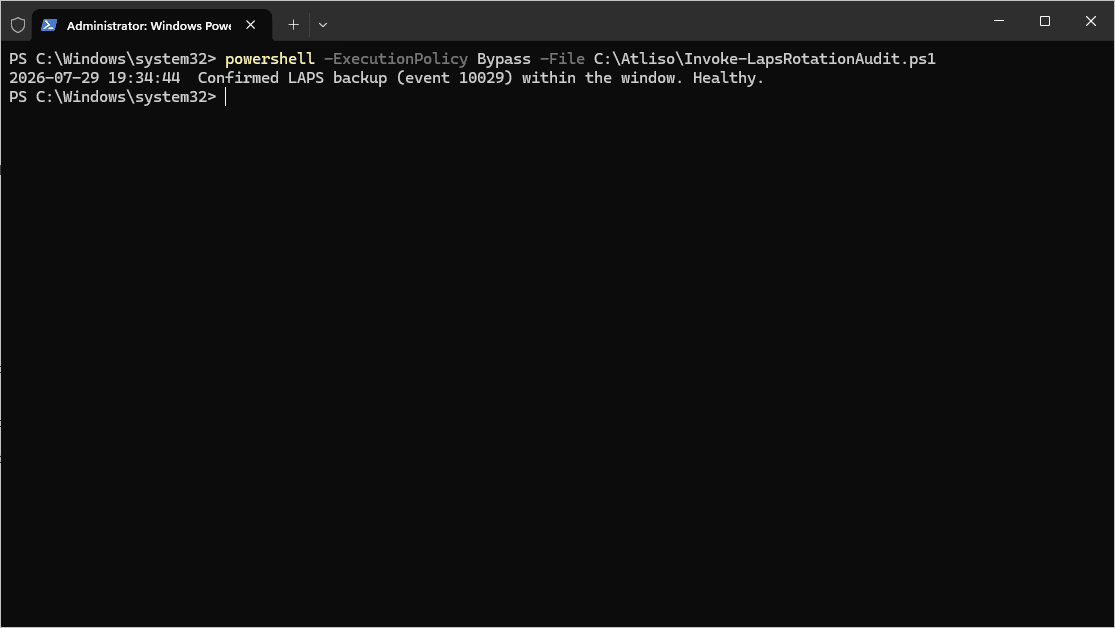
The same rotation shows up on the device record in Intune or Entra ID, under the local admin password recovery blade, with an updated timestamp:
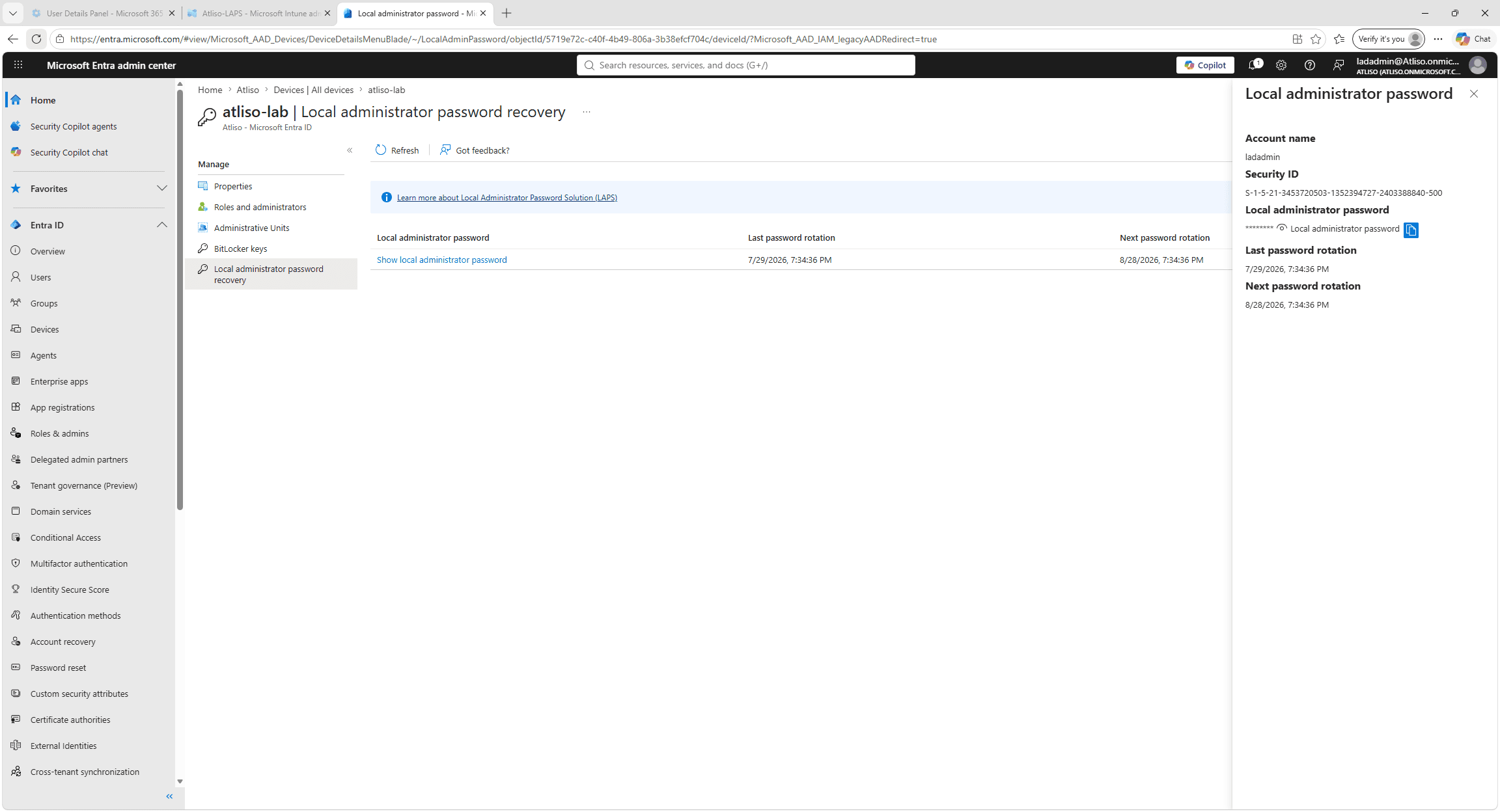
Healthy looks like this: a fresh 10029 or 10018 event in the operational log, matched by an updated timestamp on the device's password recovery record, and the log has a Reset-LapsPassword called line from this run. Run detection again an hour later and it should exit 0. If it still exits 1, check for repeated 10005 events before assuming the script needs tuning.
Get the LAPS Rotation Audit script
Free and MIT licensed. Drop your email and the vault unlocks straight away with the full, tested script, plus new tools when they ship. No spam.
Current version v1.0.1, updated 19 Oct 2026 · Version history