The Security Log on This System Is Full: Fix the Admins-Only Logon Lockout
Quick answer
Windows blocks non-admin sign-ins when the Security log is full, set to not overwrite, and the audit shutdown policy is on.
- 1.Sign in as an admin. Archive and clear the log:
wevtutil epl Security C:\Temp\Security.evtx, thenwevtutil cl Security. - 2.Set
CrashOnAuditFailunderHKLM\SYSTEM\CurrentControlSet\Control\Lsafrom 2 back to 1. - 3.Make the log bigger and set it to overwrite:
wevtutil sl Security /ms:268435456 /rt:false.
A user calls in locked out of their laptop. The message on screen reads: the security log on this system is full, only administrators can log on to fix the problem. Nothing else changed that week. No new policy anyone remembers pushing, no update that stands out. Someone with admin rights logs in, clears the log, and the machine works again. Then it happens to a different user next month, on a different machine.
This is one of the more persistent Windows 11 tickets out there, showing up across Microsoft Q&A since 22H2 and still active on 23H2 and 24H2 builds. The fix people land on works, but it's manual, it's reactive, and it does nothing to stop the same device from doing it again in a few weeks. This guide covers why it happens and a script that catches it before anyone gets locked out.
Why the security log fills up and locks people out
The Security event log has a retention setting: overwrite the oldest events as needed, or don't overwrite anything and require someone to clear it manually. A hardening baseline, a compliance requirement, or a GPO that got applied once and never revisited can leave that set to “do not overwrite.” Pair that with a small max log size and an advanced audit policy logging far more than the defaults, and the log fills in days instead of months.
A second setting is what turns a full log into an actual lockout: “Audit: Shut down system immediately if unable to log security audits.” It lives in the registry at HKLM:\SYSTEM\CurrentControlSet\Control\Lsa as CrashOnAuditFail, and three values matter:
- 0. Off. A full log just stops recording new events. Annoying, not a lockout.
- 1. The policy is enabled. If the log fills while this is set, Windows halts rather than let an audit event go unlogged.
- 2. The halt already happened. Windows sets this value itself after the crash, and it's what blocks non-admin logon until someone clears the log and resets it.
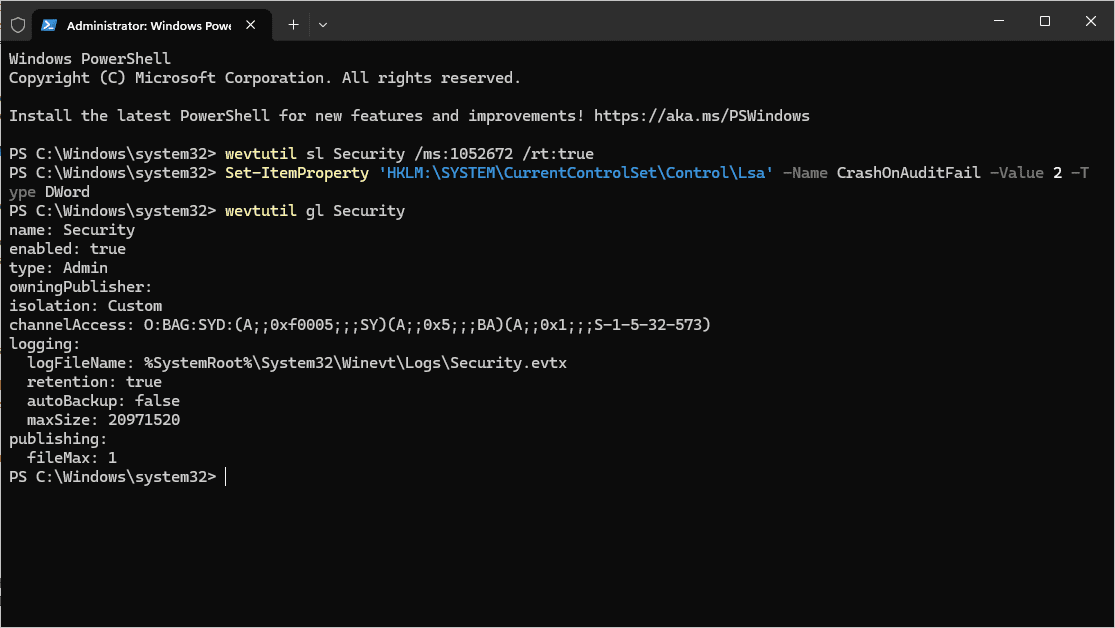
Microsoft and CIS security baselines both recommend enabling that shutdown policy. That's a reasonable control on its own. What usually gets missed is sizing the log and its retention to match it. Turn on the shutdown policy for a device with a 20MB log set to “do not overwrite” and heavy auditing, and the lockout is only a matter of time. Here is the exact config that sets the trap, retention: true on a small log:
Catch it before the log actually fills
Atliso-SecurityLogGuard.ps1 is MIT licensed and built as the detection and remediation pair Intune remediations expect. One config block controls the threshold and the target size:
# ══════════════ CONFIG ══════════════
# Trigger remediation once the log is at or above this percent full.
$WarnThresholdPercent = 90

# Target max size for the Security log, in bytes. 256MB covers most fleets even
# with advanced audit policy turned on. Raise it if your baseline logs more.
$TargetMaxSizeBytes   = 256MB

# $true reports only. $false actually resizes the log, sets it to overwrite,
# and archives + clears it if the lockout has already tripped.
$WhatIf = $true
# ═════════════════════════════════════$WarnThresholdPercent buys a window to fix a device before anyone gets locked out. $TargetMaxSizeBytes is what the remediation resizes the log to. 256MB is plenty for most fleets. If you're logging file or registry object access on top of the defaults, check actual growth on a couple of devices first and size accordingly.
Detection: how close is the device to tripping the lockout
Get-WinEvent -ListLog Security returns FileSize, MaximumSizeInBytes, and a genuinely useful IsLogFull property, so there's no need to parse wevtutil text output. The registry value tells you whether the lockout has already fired:
$log = Get-WinEvent -ListLog Security
$lsa = (Get-ItemProperty 'HKLM:\SYSTEM\CurrentControlSet\Control\Lsa' -Name CrashOnAuditFail -ErrorAction SilentlyContinue).CrashOnAuditFail
$pctFull = [math]::Round(($log.FileSize / $log.MaximumSizeInBytes) * 100, 1)

if ($lsa -eq 2) {
    Write-Output "CrashOnAuditFail=2: the lockout has already tripped."
    exit 1
}
# The root cause. 'Retain' means Do Not Overwrite, so the log stops the machine
# when it fills instead of wrapping. Catch it before it locks anyone out.
if ($log.LogMode -eq 'Retain') {
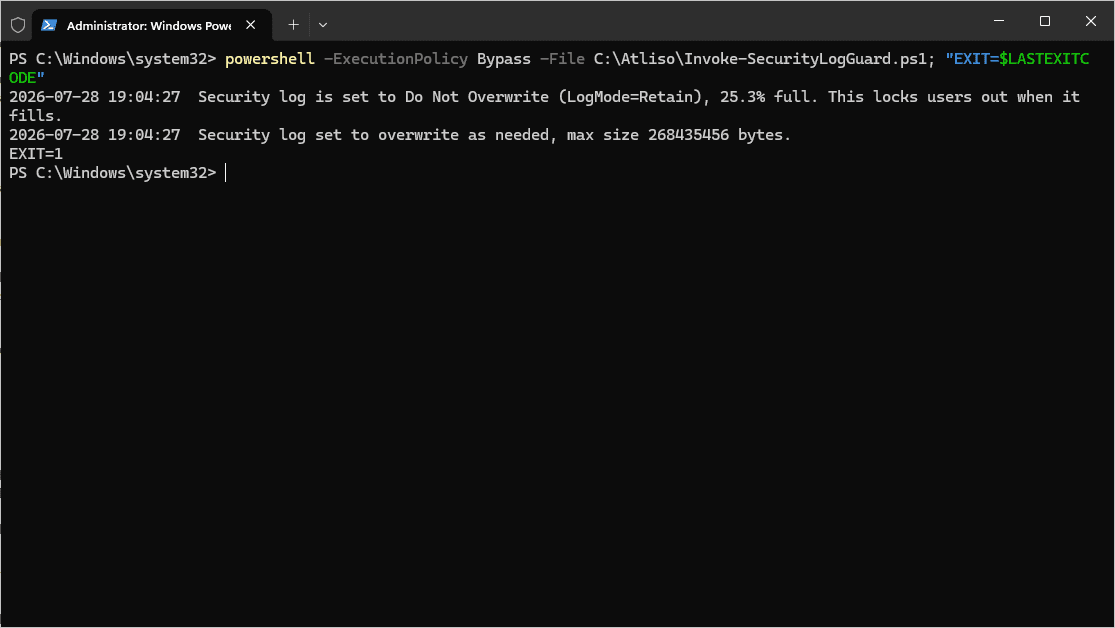
    Write-Output "Security log set to Do Not Overwrite (LogMode=Retain), $pctFull% full."
    exit 1
}
if ($log.IsLogFull -or $pctFull -ge $WarnThresholdPercent) {
    Write-Output "Security log at $pctFull% full (IsLogFull=$($log.IsLogFull))"
    exit 1
}
exit 0
Exit 1 covers three situations: the log set to Do Not Overwrite (LogMode=Retain), which is the misconfiguration that guarantees a lockout eventually; a log getting close to full, which is a warning; and CrashOnAuditFail already at 2, which means someone is already locked to admin-only logon right now. The Retain check is the one that earns its keep, it flags the device while the log is still at 25 percent, long before anyone gets shut out.
Remediation: clear the lockout and stop it recurring
If the lockout already tripped, the priority is getting the device usable again without throwing away the audit trail. If it hasn't tripped yet, the fix is resizing and switching retention before it gets there:
if ($lsa -eq 2) {
    if (-not $WhatIf) {
        $stamp = Get-Date -Format yyyyMMdd-HHmmss
        wevtutil epl Security "$env:LOCALAPPDATA\Atliso\Security-archive-$stamp.evtx"
        wevtutil cl Security
        Set-ItemProperty 'HKLM:\SYSTEM\CurrentControlSet\Control\Lsa' -Name CrashOnAuditFail -Value 1
    }
    Write-Log "Lockout cleared: log archived, cleared, CrashOnAuditFail reset from 2 to 1"
}

if (-not $WhatIf) {
    wevtutil sl Security "/ms:$TargetMaxSizeBytes" /rt:false
}
Write-Log "Security log set to overwrite as needed, max size $TargetMaxSizeBytes bytes"
Archiving with wevtutil epl before clearing keeps the events instead of losing them, which matters if the log ever needs to support an investigation. Resetting CrashOnAuditFail from 2 back to 1 keeps the policy enabled, it just clears the tripped state. The full script also treats a missing value as 0.
One thing this script deliberately doesn't do: turn off “Audit: Shut down system immediately if unable to log security audits.” If a security baseline put that there, it's usually for a real compliance reason, and disabling it fleet-wide to solve a sizing problem trades one risk for another. Fix the log size and retention. Leave the policy that depends on the log never filling alone.
Deploying it as an Intune remediation
The upload flow is the same for any Intune detection-and-remediation pair. If you've deployed one before, like forcing a stuck Windows LAPS rotation or escrowing a missing BitLocker recovery key, this will look familiar.
- In the Intune admin center: Devices > Scripts and remediations > Remediations > Create.
- Upload the detection script and the remediation script as a pair. Use the script as-is for detection. For the remediation copy, change
$WhatIf = $trueto$WhatIf = $falsein the config block first. Intune can't pass parameters to a remediation script, so an unedited copy only reports and never fixes anything. - Settings that matter:
- Run this script using the logged on credentials: No. The registry key and the event log configuration are machine-level, run this as
SYSTEM. - Run script in 64-bit PowerShell Host: Yes.
- Enforce script signature check: No, unless you sign your scripts.
- Run this script using the logged on credentials: No. The registry key and the event log configuration are machine-level, run this as
- Assign to all managed Windows devices, daily. If a device is close to the threshold, daily is enough warning to fix it before it actually locks anyone out.
If part of the fleet is still on a configuration baseline elsewhere, the same two scripts drop into a compliance rule and remediation on whatever schedule you already use for security auditing checks.
Requirements and what to check first
- Run as SYSTEM. Reading and resizing the Security log, and touching the
Lsakey, both need local admin rights on the device. - Check free disk space before raising the max size. A bigger log target doesn't help if the drive it lives on is nearly full itself.
- Switching retention to overwrite is a real trade-off. Older security events roll off sooner. If your org needs long retention for investigations, ship the log to a SIEM or Windows Event Forwarding rather than just growing
MaxSizeindefinitely. - If one device fills the log much faster than the rest of the fleet, check its advanced audit policy for a subcategory logging more than intended (object access is a common culprit) before just making the log bigger.
Verifying it worked
On the device, as an administrator:
wevtutil gl Security
Get-Content $env:LOCALAPPDATA\Atliso\SecurityLogGuard.log -Tail 20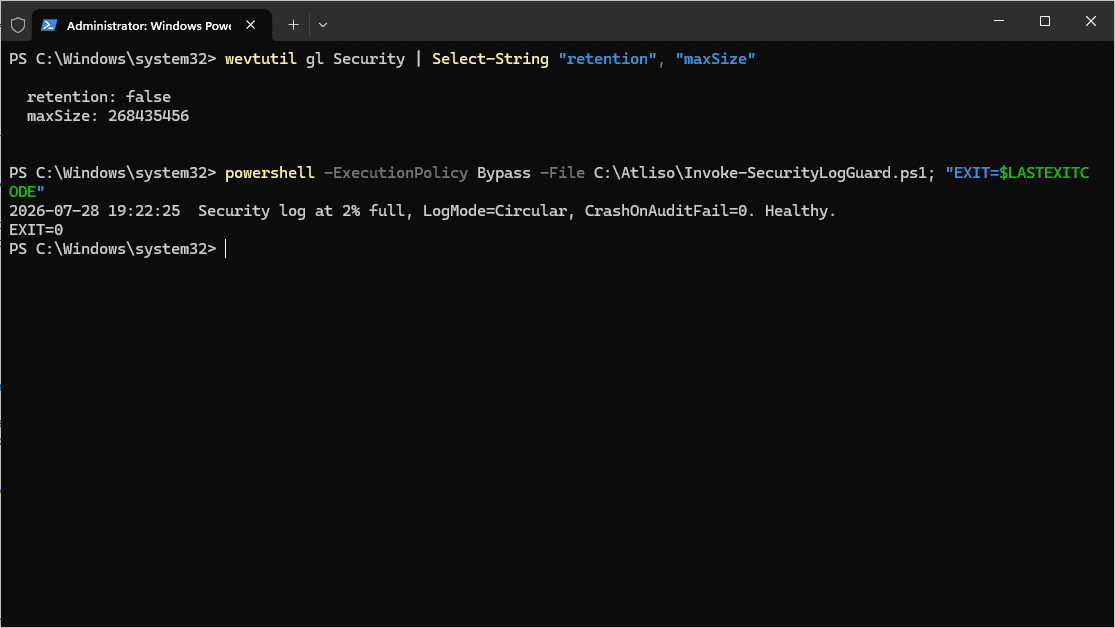
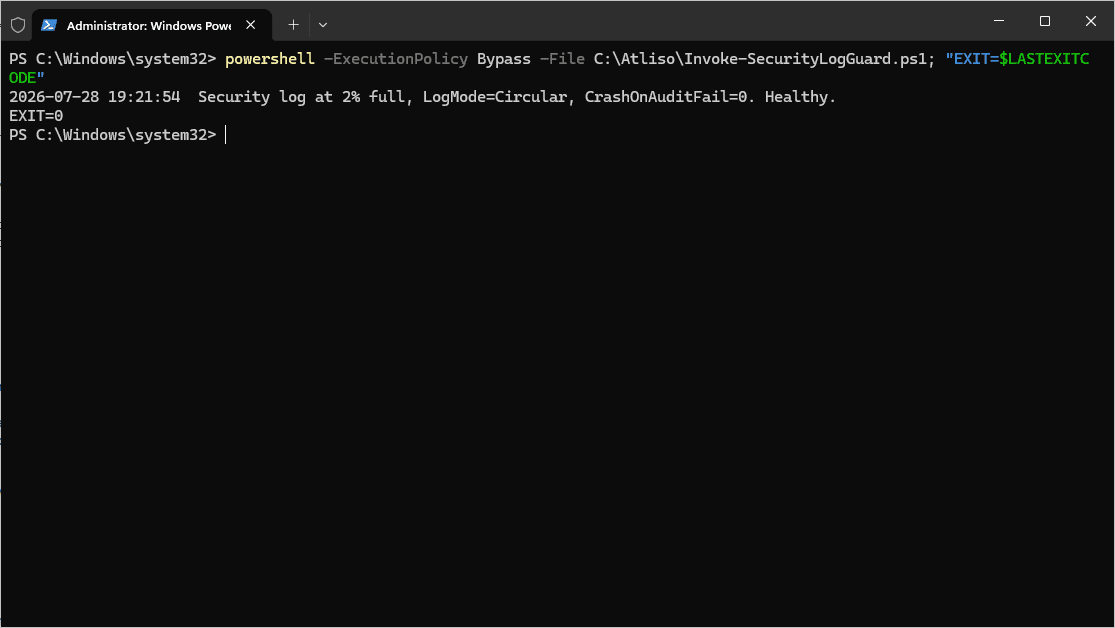
Healthy looks like this: wevtutil gl Security shows retention: false and the new max size, and the log has a “set to overwrite as needed” line. Run detection again and it should exit 0. If CrashOnAuditFail was at 2, it should now read 1.
Questions admins ask
Why does Windows say the security log on this system is full and only administrators can sign in?
The Security log is set not to overwrite events and has filled up, and the audit policy "Shut down system immediately if unable to log security audits" is on. Windows halts rather than lose an audit event, sets CrashOnAuditFail to 2, and then only admins can sign in.
How do I fix the security log full lockout?
Sign in as an admin. Archive the log with wevtutil epl Security C:\Temp\Security.evtx, clear it with wevtutil cl Security, set CrashOnAuditFail under HKLM\SYSTEM\CurrentControlSet\Control\Lsa from 2 back to 1, then enlarge the log and set it to overwrite with wevtutil sl Security /ms:268435456 /rt:false.
Should I turn off the audit shutdown policy?
Usually not. Microsoft and CIS baselines recommend it, and it's often there for compliance. Fix the log size and retention instead, so the log never fills.
How do I stop it happening again across the fleet?
Deploy a detection and remediation pair as an Intune remediation, running as SYSTEM in 64-bit PowerShell, daily. Detection flags a log set to not overwrite, a log close to full, or CrashOnAuditFail already at 2; remediation archives, clears, resizes and resets it.
Get the Security Log Guard script
Free and MIT licensed. Drop your email and the vault unlocks straight away with the full, tested script, plus new tools when they ship. No spam.
Current version v1.0.1, updated 23 Oct 2026 · Version history