Windows 11 24H2 end of support: find every Intune device on it
Quick answer
Windows 11 24H2 Home and Pro lose support on 13 October 2026. Enterprise and Education on the same build keep it until 12 October 2027.
- 1.Affected: 24H2 (build 26100) on Home, Pro, Pro Education, Pro for Workstations and SE. LTSC 2024 is on a separate, much longer lifecycle.
- 2.Find them by edition, not by OS version: the build is the same on every edition. The free script below does it with Microsoft Graph.
- 3.Move them to 25H2 (Home/Pro support to 12 October 2027) or 26H2 (to 9 October 2028) with an Intune feature update policy. From 24H2 it is a small enablement package and one restart. SE has nowhere to go: 24H2 is its last version.
Windows 11 24H2 stops getting security updates on 13 October 2026. Except it doesn't, for half of the devices that look exactly the same in Intune.
24H2 is build 10.0.26100 on every edition. Home and Pro lose support on 13 October 2026. Enterprise and Education keep it until 12 October 2027. Intune's device list shows you the build, not the support date, so filtering by 10.0.26100 gives you the wrong list: too long if you run Enterprise, and wrong in a more dangerous way if some of your “Enterprise” fleet is quietly still Pro.
This guide gets you the right list, by edition, with a read-only PowerShell script against Microsoft Graph. Then it moves the right devices. If you're reading this after the 13th, those Home and Pro devices are already out of support. The steps are the same.
Windows 11 24H2 end of support date, by edition
Microsoft splits Windows 11 support by edition, not by build. Every annual feature update gets 24 months on the Home/Pro track and 36 months on the Enterprise/Education track. The build number is identical across both. Last supported day, from Microsoft's lifecycle pages:
| Release | Build | Home / Pro | Enterprise / Education |
|---|---|---|---|
| 26H2 | 26300 | 9 Oct 2028 | 9 Oct 2029 |
| 25H2 | 26200 | 12 Oct 2027 | 10 Oct 2028 |
| 24H2 | 26100 | 13 Oct 2026 | 12 Oct 2027 |
| 23H2 | 22631 | 11 Nov 2025 | 10 Nov 2026 |
Windows 11 SE follows the Home/Pro dates, and 24H2 was its last supported version. LTSC 2024 is also build 26100, on its own long-term lifecycle.
Why the OS version column in Intune gets this wrong
Intune's Devices > Windows list shows OS version (10.0.26100.xxxx). It doesn't tell you which support date applies. Sorting by OS version and calling every 26100 device “ending tomorrow” over-reports for Enterprise shops. Worse, it hides the devices that matter: machines you think are Enterprise but are still running Pro.
That happens more than people expect. Windows Enterprise E3 and E5 (including Microsoft 365 E3 and E5) upgrade Pro to Enterprise through subscription activation. When activation fails, the device keeps reporting Pro, keeps working, and quietly sits on the Home/Pro support date. Nobody notices, because nothing breaks until the patches stop.
There's a second trap in the same build. Windows 11 Enterprise LTSC 2024 is also 10.0.26100, and it's supported for years. A build-only filter flags it as ending tomorrow.
Find devices on 24H2 in the Intune admin center
For a quick look at a small fleet:
- Go to Devices > Windows > Windows devices.
- Open Columns and add SKU family. Sort by OS version: everything starting 10.0.26100 is on 24H2, and SKU family tells you whether it's on the Pro or the Enterprise date.
- For a single device, open it and go to the Device details tab. Operating system edition and Operating system SKU show the exact edition, for example “Windows 10/11 Enterprise Evaluation (72)”.
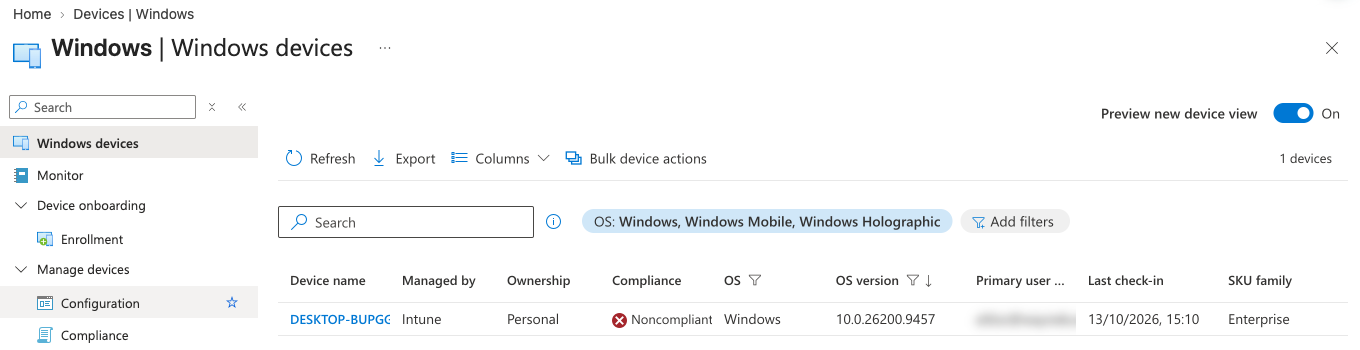
That works for twenty devices. It doesn't work for two thousand, and it doesn't give you a date per device. That's what the script is for.
List every 24H2 device by edition with PowerShell and Graph
Atliso-Win11EndOfSupportAudit.ps1 is read-only. It signs in to Microsoft Graph with your own account and reads Intune's managed devices. For each Windows device it works out the version, the edition, and the last day of support for that edition, then exports everything to CSV. Nothing is changed in your tenant.
What you need:
- The
Microsoft.Graph.Authenticationmodule. - An account that can read Intune devices. It requests
DeviceManagementManagedDevices.Read.All(delegated). Intune Read Only Operator is enough.
Install-Module Microsoft.Graph.Authentication -Scope CurrentUserThe CONFIG block at the top:
# ===== CONFIG =====
$OutputPath = Join-Path $env:USERPROFILE 'Desktop\Atliso-Win11-EndOfSupport.csv'
$WarnDays   = 60     # flag devices whose support ends within this many days
$LogPath    = Join-Path $env:LOCALAPPDATA 'Atliso\Win11EndOfSupportAudit.log'
# ==================
The part that matters is how edition decides the date. Intune exposes the Windows product type as skuNumber on the beta managed device resource, and the script maps it to a support track:
$ConsumerSkus   = 98,99,100,101,48,49,161,162,164,165   # Home, Pro, Pro for Workstations, Pro Education
$SeSkus         = 178,179                               # Windows 11 SE: 24H2 is its last version
$EnterpriseSkus = 4,27,72,84,121,122,175,188            # Enterprise (+ N, Evaluation), Education, multi-session, IoT Enterprise
$LtscSkus       = 125,126,129,130,191                   # LTSC (+ N, Evaluation), IoT LTSC: separate lifecycle, never flagged
And the 24H2 row of the lifecycle table it checks against:
26100 = @{ Release = '24H2'; Consumer = '2026-10-13'; Enterprise = '2027-10-12' }Run it:
.\Atliso-Win11EndOfSupportAudit.ps1You get a summary in the console and a CSV with one row per Windows device: device, user, OS version, release, edition, support track, last day of support, days left, status and last check-in. Status is OutOfSupport, EndingSoon, Supported, LTSC or Unknown. It exits 1 when anything is out of support or ending soon, so it can run on a schedule. MSPs can pass -TenantId to run it against each customer tenant.
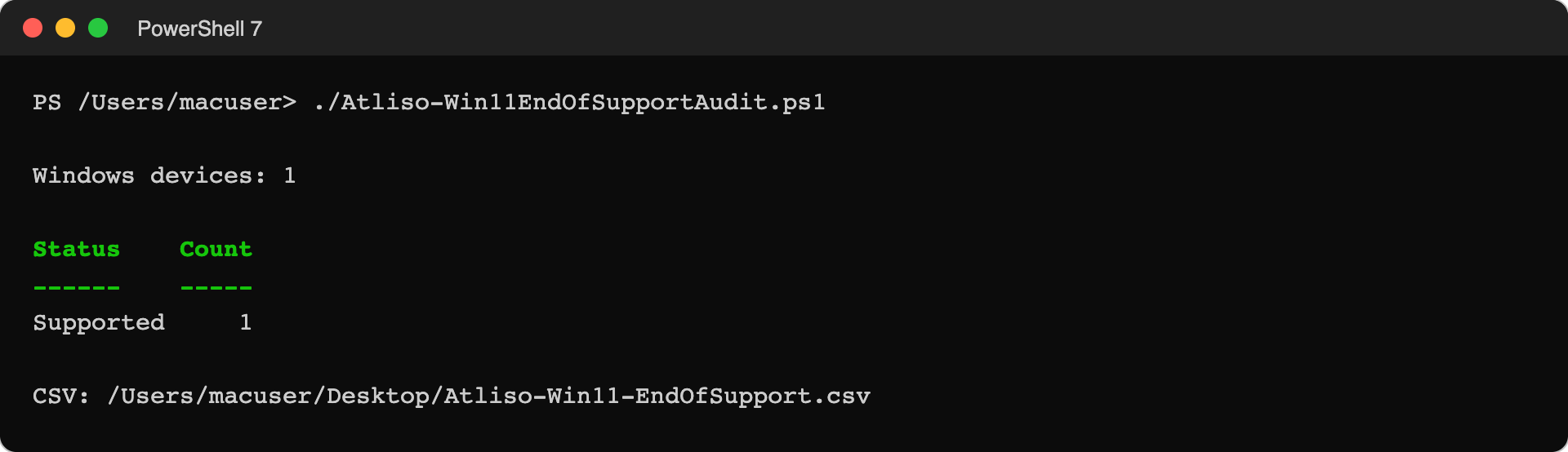
Two things to read in the results:
- Pro devices in an Enterprise-licensed tenant. Filter edition = Pro where you expected Enterprise. Each one is a subscription activation problem, and each is on the 2026 date, not 2027.
- Unknown. A device with no edition reported, usually one that hasn't checked in for a while. Sort by last check-in. A device that hasn't synced in a month isn't getting your feature update either.
Upgrade 24H2 to 25H2 or 26H2 with Intune
24H2, 25H2 and 26H2 share a servicing base. Going forward is an enablement package: a small download and one restart. Plan it like any feature update anyway, with a pilot first.
Which version to target:
- 25H2 has been out for a year, which suits a change you want to be boring. Home/Pro support runs to 12 October 2027, so you'll be doing this again next autumn.
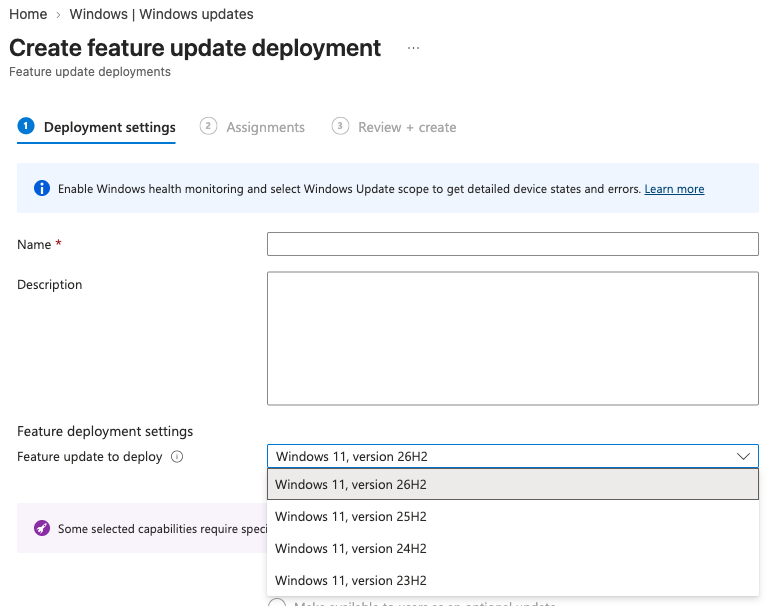
- 26H2 came out on 29 September 2026 and is the version Intune preselects when you create a feature update deployment. Home/Pro support runs to 9 October 2028, which buys an extra year. Pilot it properly, because it's two weeks old.
Steps:
- Check what's holding them. Go to Devices > Windows > Windows updates, Feature updates tab, and look for a policy whose feature update version is 24H2. A feature update policy keeps devices on its version. If one is pinned to 24H2, that's your answer.
- Create profile on the same tab opens Create feature update deployment. Pick 25H2 or 26H2 under Feature update to deploy. Assign it to a pilot group first, ideally 5 to 10 devices that cover your main hardware models.
- Check the update rings. Feature update deferral must be 0 days, and feature updates must not be paused. Otherwise the ring quietly blocks the policy.
- Watch the feature update report for the pilot. Once it's clean, widen the assignment in rings: pilot, then early adopters, then everyone.
- Re-run the script. Devices drop off the list as they report the new build.
Licensing: Intune feature update policies need a Windows licence that includes the Autopatch entitlement (Windows Enterprise E3/E5, Education A3/A5, Microsoft 365 Business Premium and similar). Without it, use update rings: set feature update deferral to 0 and let Windows Update offer the newer version.
Before you push any feature update, make sure every device's BitLocker recovery key is in Entra ID. An update that ends in a recovery prompt is a bad morning without the key. Here's how to find and fix devices with no key escrowed. And if you fixed mapped drives after 24H2's SMB signing change, that carries forward to 25H2 and 26H2.
Questions admins ask
Does Windows 11 24H2 Enterprise lose support in October 2026?
No. Enterprise and Education 24H2 are supported until 12 October 2027. Only Home, Pro, Pro Education, Pro for Workstations and SE end on 13 October 2026.
What happens to 24H2 Home and Pro after 13 October 2026?
The devices keep working. They stop receiving monthly security and quality updates, so every vulnerability fixed after that date stays open on them.
Will Intune-managed devices upgrade to 25H2 on their own?
Unmanaged Home and Pro devices get offered 25H2 automatically. Managed devices follow your update rings and feature update policies. If a policy pins them to 24H2, they stay there.
Is Windows 11 LTSC 2024 affected?
No. LTSC 2024 shares build 26100 but has its own long-term lifecycle. Exclude it from any build-based report, which the script does.
Why does a device licensed for Enterprise show as Pro?
Subscription activation hasn't stepped it up. Until it does, the device is on the Pro support date. Check the licence assignment and the activation status on the device.
How do I check 24H2 end of support across several tenants?
Run the script once per tenant with -TenantId, or connect each tenant to Atliso Pro, which checks all of them daily.
Check it every day, not once
Running the script tells you where you stand today. Next October the same question comes back for 25H2 on Home and Pro. The October after, it's 24H2 Enterprise.
Sources
Get the Windows 11 End of Support Audit script
Free and MIT licensed. Drop your email and the vault unlocks straight away with the full, tested script, plus new tools when they ship. No spam.