Intune stale devices: clean up without losing BitLocker keys

Quick answer
A device is stale when it stops checking in to Intune, usually 90 days or more. Intune and Entra ID keep separate records, so cleaning up one leaves the other. Deleting the Entra record also deletes its BitLocker keys.
- 1.Find them: in Intune, sort Devices > All devices by Last check-in. In Entra, sort Devices > All devices by Activity. Or run the script below, which checks both and matches them up.
- 2.Before deleting anything, save the BitLocker recovery keys and deregister Autopilot devices you plan to reuse.
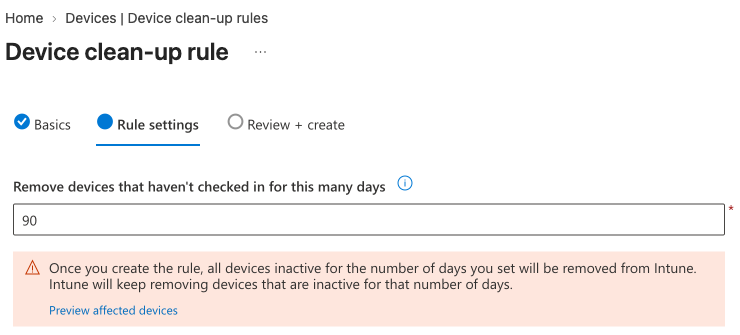
- 3.Intune: retire or delete the device, or add a device cleanup rule (Devices > Organize devices > Device cleanup rules) to hide anything quiet for 90 days.
- 4.Entra: disable the device first, wait a few weeks, then delete it. A deletion can't be undone.
The compliance report says 84%. A third of the non-compliant devices were handed back last year. Somebody searches for a user's laptop and gets three records with the same name, two of them dead. The helpdesk picks the wrong one.
Every tenant collects Intune stale devices: leavers, broken laptops, reimaged machines that enrolled again as new records, test VMs nobody deleted. The fix sounds easy. Find anything that hasn't checked in for 90 days and delete it. The catch is what else goes with it. Delete the Entra record and its BitLocker recovery keys go too. Delete an Autopilot device's Entra object and that laptop can't be redeployed the normal way.
This guide shows how to find stale devices in both Intune and Entra ID, what the built-in cleanup rules do and don't do, and a read-only script that tells you which devices are safe to remove before you remove anything.
What counts as a stale device in Intune
There are two clocks, and they don't agree:
| Where | Field | What updates it | How fresh |
|---|---|---|---|
| Intune | Last check-in (lastSyncDateTime) | The device syncing with Intune | Every sync, usually every 8 hours |
| Entra ID | Activity (approximateLastSignInDateTime) | Device sign-ins, Conditional Access checks, Intune check-ins | Only when it is more than 14 days old, give or take 5 |
The Entra timestamp is deliberately lazy. Microsoft only rewrites it when the old value is more than about two weeks out of date, so a device used yesterday can show an Activity date 19 days ago. Microsoft's own advice is not to treat anything younger than 21 days as stale. Some active devices show no timestamp at all.
The useful part is when the two clocks disagree. A device with no Intune check-in for 100 days but an Entra sign-in last week isn't lost. Someone is using it, and its Intune enrolment is broken. Delete that one and you've made it worse.
Find stale devices in the Intune admin center
- Intune admin center > Devices > All devices.
- Add the Last check-in column if it isn't showing, and sort by it, oldest first.
- Export the list if you need it in Excel.

Then do the same in the Entra admin center under Devices > All devices, sorted by Activity. You'll find devices there that Intune has never heard of: personal phones registered for Outlook, old hybrid joined PCs, things enrolled into a different MDM years ago.

Matching the two lists up by hand is where the afternoon goes. The script further down does it for you.
What Intune device cleanup rules actually do
Intune has a built-in option under Devices > Organize devices > Device cleanup rules. It's worth turning on, but it's narrower than the name suggests:
- It hides, it doesn't delete. Devices disappear from the admin center and reports. Nothing is sent to the device, so there's no wipe and no retire.
- 30 to 270 days. You pick the threshold. Since 2025 you can set one rule per platform. If a platform rule and an All platforms rule both exist, the one with fewer days wins.
- Hidden devices can come back. If a device checks in before its device certificate expires, it reappears. After that it has to re-enrol.
- Entra is untouched. The Entra device object, and the BitLocker keys stored on it, stay where they are.
Each hidden device shows in the Intune audit log as Device set to be hidden from admin by Device Cleanup Rule, followed by your rule name. So a cleanup rule tidies the Intune side and leaves Entra exactly as messy as it was.
Check before you delete: BitLocker keys, Autopilot and hybrid join
Three things make deleting a stale device in Entra less simple than it looks:
- BitLocker recovery keys. They're stored on the Entra device object. Microsoft is blunt about it: delete the device and the keys go with it, and there's no way to get them back. If that laptop turns up in a drawer in six months with a recovery screen, you want that key. It's the same key our BitLocker escrow guide works so hard to get into Entra in the first place.
- Autopilot. Autopilot devices are system-managed in Entra. Microsoft says not to delete them. If you do, self-deploying and pre-provisioned deployments fail on that hardware because the object they expect is gone. Deregister it from Autopilot in Intune first if it's leaving for good.
- Hybrid joined devices. Delete these in Entra only and Entra Connect syncs them straight back from on-prem AD, as a new object in the Pending state. Disable or delete them in Active Directory and let the sync do the rest.
Clean up stale devices in the right order
Microsoft's recommended sequence, with the reasons:
- Confirm it's gone. Long sick leave, sabbaticals and the spare laptop in the cupboard all look stale. A quick message to the user is cheaper than a rebuild.
- Deal with Intune first. Retire or delete the device in Intune. Microsoft says to remove it from the MDM before touching Entra.
- Save the BitLocker keys if there's any chance the drive comes back.
- Disable it in Entra. Disabling blocks the device from authenticating, so nobody can sign in on it, and you can undo it.
- Wait. A few weeks is normal. If nobody shouts, delete it in Entra.
Disabling one device with Graph looks like this. It needs the Intune Administrator or Cloud Device Administrator role:
Connect-MgGraph -Scopes Directory.AccessAsUser.All
# Entra object ID (the "Object ID" in the portal), not the device ID
Invoke-MgGraphRequest -Method PATCH -Uri "https://graph.microsoft.com/v1.0/devices/<object-id>" -Body '{"accountEnabled": false}'
Microsoft's own Entra cleanup script follows the same pattern: disable with Update-MgDevice, wait, then Remove-MgDevice. That last cmdlet doesn't ask for confirmation.
Find stale Intune and Entra devices with PowerShell
Atliso-StaleDeviceAudit.ps1 reads both sides through Microsoft Graph and matches every Intune device to its Entra object. You get one list with a status for each device, plus what to check before you remove it. It changes nothing in your tenant.
| Status | What it means | What to do |
|---|---|---|
| Check | No Intune check-in, but Entra saw it recently | Don't delete. It's in use with a broken enrolment. Sync or re-enrol it |
| Duplicate | The same serial number enrolled again as a newer record | Delete this old Intune record |
| Stale | No Intune check-in and no recent Entra activity | Confirm with the user, then clean up in the order above |
| Stale (Entra only) | In Entra, never in Intune, quiet past the threshold | Disable in Entra, delete after a grace period |
Each flagged device also shows how many BitLocker recovery keys Entra holds for it, whether it's registered in Autopilot and whether it's hybrid joined. The script lists key IDs only, never the keys themselves.
The rule that splits Check from Stale is the interesting bit:
# The "Check" rule: no Intune sync for $StaleDays, but Entra still sees it
if ($null -ne $seenDays -and $seenDays -lt $StaleDays) {
  $status = 'Check'   # in use, broken enrolment. Fix it, don't delete it
} else {
  $status = 'Stale'
}
Duplicates are found by serial number. If the same serial enrolled again after the old record last synced, the old record is a duplicate, whatever its age. Placeholder serials like Default string on VMs and cheap motherboards are ignored, so they don't all match each other.
What you need:
- The
Microsoft.Graph.Authenticationmodule, and the script: it's on the PowerShell Gallery and on GitHub. - An account that can read Intune devices, Entra devices and BitLocker key metadata, such as Intune Administrator or Global Reader. It asks for
DeviceManagementManagedDevices.Read.All,Device.Read.All,BitlockerKey.ReadBasic.AllandDeviceManagementServiceConfig.Read.All. All delegated, all read-only.
Install-Module Microsoft.Graph.Authentication -Scope CurrentUser
Install-Script Atliso-StaleDeviceAudit -Scope CurrentUser   # from the PowerShell Gallery
The CONFIG block at the top:
# ===== CONFIG =====
$OutputPath         = Join-Path $env:USERPROFILE 'Desktop\Atliso-StaleDevices.csv'
$StaleDays          = 90     # no Intune check-in (or Entra sign-in) for this many days
$CheckBitLockerKeys = $true  # count recovery keys in Entra: deleting the device deletes them
$CheckAutopilot     = $true  # flag Autopilot devices: deleting their Entra object breaks reuse
$LogPath            = Join-Path $env:LOCALAPPDATA 'Atliso\StaleDeviceAudit.log'
# ==================Run it:
Atliso-StaleDeviceAudit.ps1
# MSPs: once per customer tenant
Atliso-StaleDeviceAudit.ps1 -TenantId contoso.onmicrosoft.com
It writes a CSV to your desktop and exits 1 if it found anything, so it can run as a monthly scheduled task. If $StaleDays is set below 21, it uses 21, because the Entra timestamp can lag by up to 19 days.
What it doesn't do: it doesn't delete, disable or retire anything. Disabling Entra devices needs the broad Directory.AccessAsUser.All permission, and deleting is a decision you should make with the list in front of you. It doesn't look at on-prem Active Directory either, so hybrid joined devices are flagged, not cleaned up.
Questions admins ask
How many days before an Intune device counts as stale?
Most tenants use 90. Microsoft's cleanup rules accept 30 to 270. Don't go below 21 for anything that uses the Entra activity timestamp: it only updates every 14 days or so, with a few days either way.
Do Intune device cleanup rules delete devices?
No. They hide the record from the admin center and reports. Nothing is sent to the device, and the Entra device object stays where it is. If the device checks in before its certificate expires, it comes back.
Does deleting a device in Intune remove it from Entra ID?
No. Intune and Entra hold separate records. Deleting or hiding one leaves the other, which is why most tenants end up with far more devices in Entra than in Intune.
Can I get a BitLocker key back after deleting the device?
No. The keys are stored on the Entra device object, and Microsoft says there's no way to recover them after the device is deleted. Save the keys first if the drive might ever turn up.
Is it safe to delete Autopilot devices from Entra?
Not if the hardware will be reused. Self-deploying and pre-provisioned Autopilot deployments fail when the Entra object they expect is gone. Deregister the device from Autopilot in Intune first.
Why does a device show a recent Entra sign-in but no Intune check-in?
It's in use, but its Intune enrolment is broken or its MDM certificate has expired. Deleting it won't help. Sync it from the device, and re-enrol it if that fails.
Catch devices going quiet every night
A device that stops checking in is usually telling you something before it becomes a cleanup job. Its LAPS password stops rotating, its patches stop landing and its compliance state freezes. Finding it after 90 days is cleanup. Finding it after 14 is support.
Atliso Pro checks every device in your tenant every night and flags anything that hasn't checked in for 14 days, alongside BitLocker escrow, LAPS rotation and Windows end of support. The first scan is free and takes about two minutes. See the sample report first if you'd rather.
Sources
Get the Stale Device Audit script
Free and MIT licensed. Drop your email and the vault unlocks straight away with the full, tested script, plus new tools when they ship. No spam.