Intune non-compliant devices: find them before users call
Quick answer
Intune marks a device non-compliant when it fails a setting in a compliance policy, or stops reporting for 30 days. Out of the box it tells the user, if their profile has an email address, and nobody in IT. Conditional Access then blocks them.
- 1.See who's affected now: Devices > Monitor > Noncompliant devices in the Intune admin center, or run the script below for every failing device with the setting that fails.
- 2.Give users time to fix it: set the Mark device noncompliant action to 1 or 2 days, so devices sit In grace period before they're blocked.
- 3.Tell someone in IT: add an IT group as Additional recipients on the email action, or check a daily list that one person owns.
Monday morning, a user rings the helpdesk. Outlook says they can't get in from this device. The laptop went non-compliant on Friday afternoon, Conditional Access did exactly what it was told, and the first anyone in IT hears of it is the phone call.
That's how most Intune non-compliant devices get found. We asked Adam Ollier, head of technical delivery at a UK MSP, how he finds out when a client's device drops out of compliance:
From the field
Mainly via helpdesk calls. Alerts are great, but they don't always get responded to in a timely fashion.

Intune isn't hiding anything. It just tells the user, not you, and only if you asked it to.
This guide covers what Intune does when a device fails compliance, who it tells, how the grace period really works, and a read-only script that lists every non-compliant device with the setting that's failing, so someone can fix it before the user notices.
What happens when an Intune device goes non-compliant
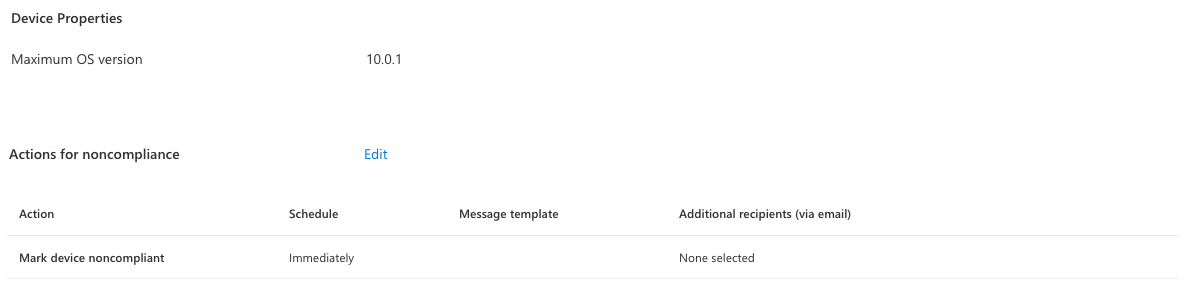
Every compliance policy has actions for noncompliance. One is built in and can't be removed: Mark device noncompliant, set to 0 days. The rest are optional:
| Action | What it does | Platforms |
|---|---|---|
| Mark device noncompliant | Sets the compliance flag. Conditional Access reads it. The schedule here is your grace period | All |
| Send email to end user | Emails the user from microsoft-noreply@microsoft.com, plus any Entra groups you add | All |
| Send push notification to end user | A Company Portal notification. Microsoft says delivery isn't guaranteed | Android, iOS/iPadOS |
| Remotely lock the noncompliant device | Locks it until the PIN or password is entered | Android, iOS/iPadOS, macOS |
| Add device to retire list | Adds it to a list in the admin center. Nothing happens until an admin retires it | Android, iOS/iPadOS, macOS, Windows |
Every action runs on a schedule counted in days after the device is marked non-compliant, and you can add the same action more than once. An email at day 0 and another at day 3 is a common setup.
Does Intune notify admins about non-compliant devices?
No, not unless you set it up. The email action goes to the user. There's an Additional recipients box for Entra groups, but it's empty until someone fills it, and most tenants never do. There's no admin alert, no digest and no Teams message.
The user email has its own catches:
- It uses the email on the user's profile, not the UPN. No email address on the account, no email. Microsoft's docs say so in one line that's easy to miss.
- It can take up to 6 hours after the device is marked non-compliant. With a 0 day grace period, the user is blocked before the email arrives.
- It comes from microsoft-noreply@microsoft.com. Mail rules that quarantine it mean the user never sees it.
- Users ignore it. An automated email from Microsoft about "compliance" looks a lot like phishing training.
Adding an IT group as a recipient fixes the "nobody knows" part, but every email goes to the whole group, per device, on every scheduled repeat. In a tenant of any size that inbox turns into noise within a week, which is how alerts end up not getting answered.
How the Intune compliance grace period works
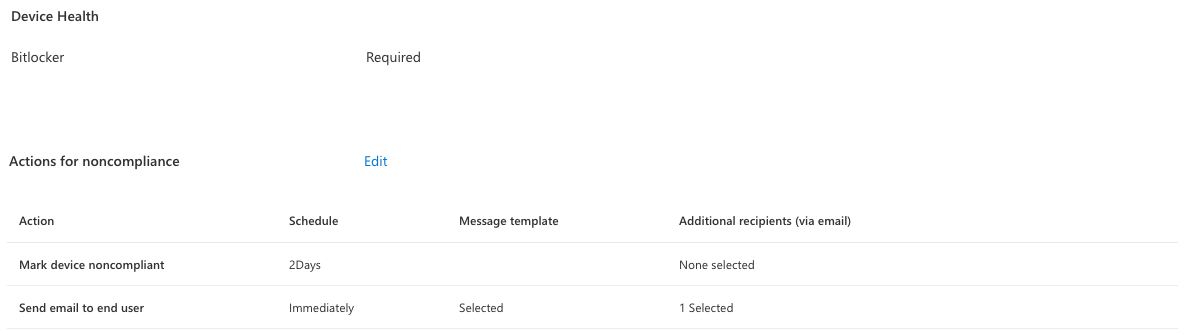
The grace period is the schedule on Mark device noncompliant. Change it from 0 to 2 days and a device that fails a setting shows In grace period for 2 days instead of Not compliant. Conditional Access still lets it in. If it's fixed in time, it never goes non-compliant at all.
A few details that catch people out:
- Other actions count from the non-compliant mark, not the failure. An email at day 1 on a policy with a 3 day grace period goes out on day 4, after the user is already blocked.
- Grace periods can be shorter than a day. The admin center takes quarter days, so 0.25 is 6 hours. Other fractions need Graph.
- Graph shows the deadline. Each device has
complianceGracePeriodExpirationDateTime. For a device in its grace period, that's when it'll be blocked.
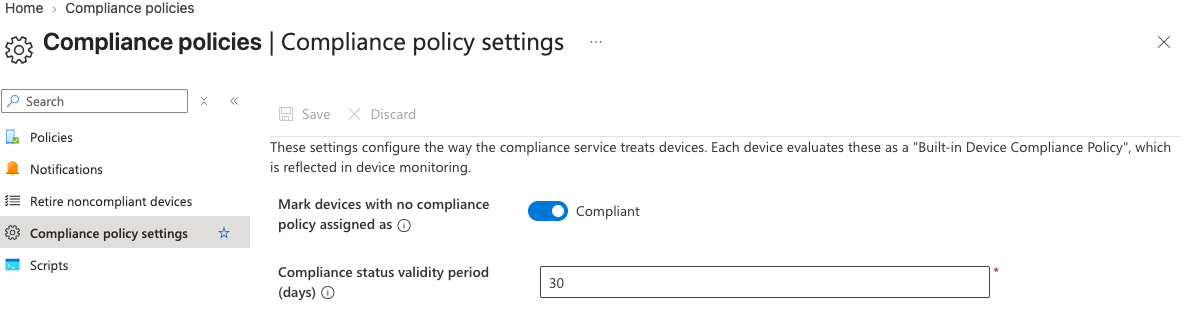
Then there's the setting that isn't in any policy you wrote. The built-in Default Device Compliance Policy checks Is active: a device that hasn't reported within the compliance status validity period is non-compliant. That's 30 days by default, and you can set 1 to 120 under Endpoint security > Device compliance > Compliance policy settings. A laptop left in a drawer for a month comes back non-compliant with nothing wrong with it. If it never comes back, it's a stale device instead.
Find non-compliant devices in the Intune admin center
- Intune admin center > Devices > Monitor > Noncompliant devices for the list.
- Open a device, then Device compliance, to see which policy it fails.
- Select the policy to see the setting.
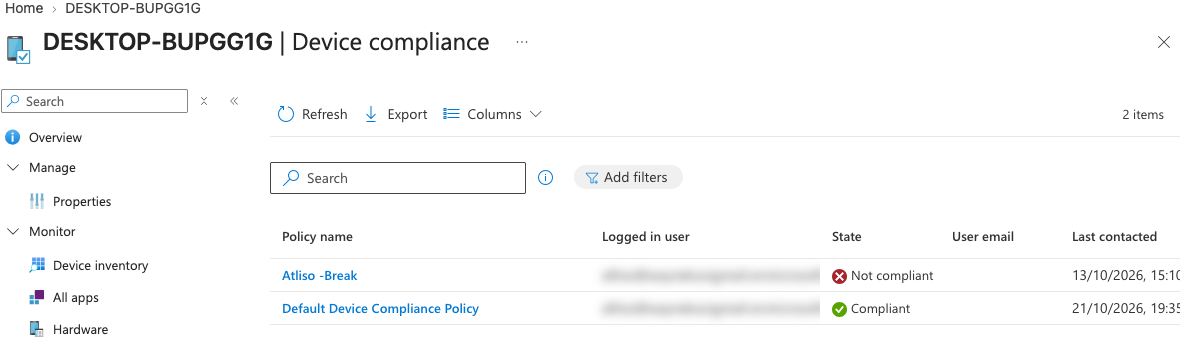
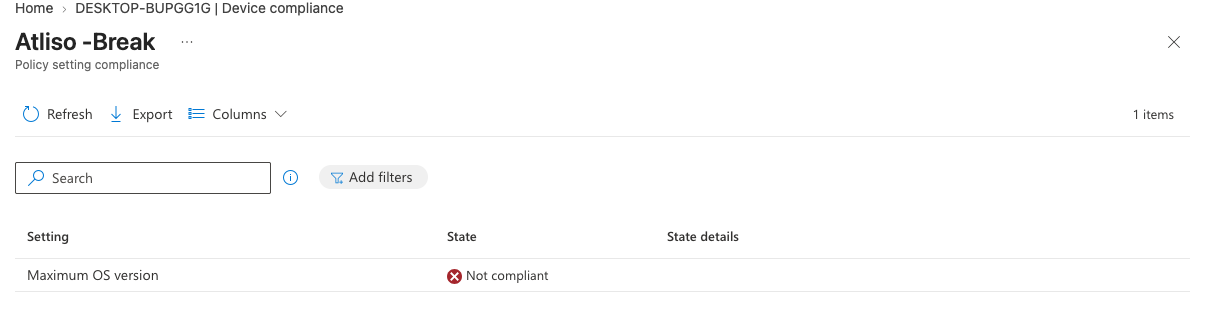
That works for one device. For thirty, or for five customer tenants before the phones start, it's a lot of clicking, and the grace period deadline isn't on any of those pages.
List every non-compliant device with PowerShell
Atliso-NoncompliantDeviceAudit.ps1 reads every device that isn't compliant through Microsoft Graph, looks up the policy and setting each one fails, and writes one list with a next step per device. It changes nothing in your tenant.
| Status | What it means | What to do |
|---|---|---|
| In grace period | Failing, not blocked yet. HoursLeft says how long | Fix these first. They're the calls you can still prevent |
| Noncompliant | Past the grace period. Conditional Access is blocking it if you require compliant devices | Fix the setting, then sync the device |
| Error / Conflict | A setting failed to evaluate, or two policies disagree | Check the policies assigned to it |
Grace period devices come first, soonest deadline at the top. Each row also says when the device last checked in, and flags users with no email address on their profile, because Intune's email action can't reach them.
The failing setting comes from one Graph call per failing policy. It's a beta endpoint, and the only place the setting detail lives:
# Which setting failed, per device and policy. Only the beta endpoint has it.
$uri = "https://graph.microsoft.com/beta/deviceManagement/managedDevices/$deviceId" +
       "/deviceCompliancePolicyStates/$policyId/settingStates"
Invoke-MgGraphRequest -Method GET -Uri $uri -OutputType PSObject |
  Select-Object -ExpandProperty value |
  Where-Object state -eq 'nonCompliant' |
  Select-Object settingName, state
Common settings get plain names, such as BitLocker not on or OS older than the minimum version. If BitLocker is the one failing across the board, our guide to BitLocker waiting for activation covers the usual cause. An OS minimum version tends to follow Windows end of support dates.
The script also prints what every compliance policy does on failure: how long the grace period is, whether it emails the user and when, and whether anyone in IT is copied. If nobody is, it says so.
What you need:
- The
Microsoft.Graph.Authenticationmodule, and the script: it's on the PowerShell Gallery and on GitHub. - An account that can read Intune devices and compliance policies, such as Intune Administrator, Help Desk Operator or Read Only Operator. It asks for
DeviceManagementManagedDevices.Read.AllandDeviceManagementConfiguration.Read.All. Delegated, read-only.
Install-Module Microsoft.Graph.Authentication -Scope CurrentUser
Install-Script Atliso-NoncompliantDeviceAudit -Scope CurrentUser   # from the PowerShell Gallery
The CONFIG block at the top:
# ===== CONFIG =====
$OutputPath    = Join-Path $env:USERPROFILE 'Desktop\Atliso-NoncompliantDevices.csv'
$CheckSettings = $true   # look up the failing setting per device: one extra Graph call per failing policy
$ShowPolicies  = $true   # list what each compliance policy does on failure, and who it tells
$LogPath       = Join-Path $env:LOCALAPPDATA 'Atliso\NoncompliantDeviceAudit.log'
# ==================Run it:
Atliso-NoncompliantDeviceAudit.ps1
# MSPs: once per customer tenant
Atliso-NoncompliantDeviceAudit.ps1 -TenantId contoso.onmicrosoft.com
The output from our lab tenant, with the user redacted:
Status       DeviceName      User                 FailingSettings                   GraceEnds            LastSync
------       ----------      ----                 ---------------                   ---------            --------
Noncompliant DESKTOP-BUPGG1G atliso@<lab tenant>  OS newer than the maximum version 2026-10-11 16:06 UTC 2026-10-13 14:10 UTC

What each compliance policy does when a device fails:

Policy        Assigned MarkedAfter EmailsUser CopiesIT OtherActions
------        -------- ----------- ---------- -------- ------------
Atliso -Break     True Immediately No         No

No policy copies anyone in IT on its emails. Users hear about non-compliance first, or nobody does.
Found: 1 noncompliant.
It writes a CSV to your desktop and exits 1 if it found anything. The lab user has no mailbox, so the CSV also notes that Intune's email action couldn't reach them, which on a real tenant usually means a service account or an unlicensed user.
What it doesn't do: it doesn't fix anything, sync devices or change policies. It signs in as you, so it's a morning check, not an unattended scheduled task. And it only sees devices that have reported. A device that has never checked in shows as unknown, and the script leaves those out.
Make one person own the list
The real fix is boring. Pick one person, run the list first thing, work the grace period rows before 9. Two minutes a day, and the Monday phone call becomes a Friday afternoon fix. For MSPs, run it with -TenantId for each customer and the CSVs land side by side.
Questions admins ask
Does Intune alert admins when a device becomes non-compliant?
Not by default. The only built-in notifications are the actions in each compliance policy: an email to the user, a push notification on mobile devices, and optional extra recipients on the email. If nobody adds an IT group to those emails, nobody in IT is told.
What is the grace period in an Intune compliance policy?
It's the schedule on the Mark device noncompliant action. At 0 days, a device that fails is non-compliant straight away. Set it to 2 days and the device shows In grace period for two days first, which gives the user time to fix it before Conditional Access blocks them.
When does the non-compliance email get sent?
On the schedule you set on the Send email to end user action, counted from when the device is marked non-compliant. Microsoft says to expect it within 6 hours. It goes to the email address on the user's profile, not their UPN, and if there isn't one, nothing is sent.
Why is a device non-compliant when every setting looks fine?
Check the built-in Default Device Compliance Policy. Its Is active setting fails when a device hasn't reported within the compliance status validity period, 30 days by default. A device that is switched off for a month goes non-compliant without anything being wrong with it.
How do I see which setting makes a device non-compliant?
In Intune, open the device, then Device compliance, then select the policy. Each setting shows its own state. In Graph, the same detail is under deviceCompliancePolicyStates and settingStates for the device, in the beta endpoint.
Does a non-compliant device lose access straight away?
Only if a Conditional Access policy requires a compliant device for that app. Compliance on its own just sets a flag. Conditional Access is what turns the flag into a block.
Get the list every morning without running anything
Atliso checks every device in your client tenants every night and lists the ones that are non-compliant, alongside BitLocker escrow, LAPS rotation and devices that have stopped checking in. Anything new arrives in your helpdesk as a ticket. There's a 30-day free trial, and you can see the sample report first.
Sources
- Microsoft Learn: Configure actions for noncompliance
- Microsoft Learn: Device compliance policies in Intune (compliance status validity period)
- Microsoft Graph: managedDevice resource type (complianceState, complianceGracePeriodExpirationDateTime)
Get the Noncompliant Device Audit script
Free and MIT licensed. Drop your email and the vault unlocks straight away with the full, tested script, plus new tools when they ship. No spam.